RightNow May 2013 Released

Oracle have announced the May 2013 release of Oracle RightNow CX Cloud Service, which has many interesting improvements that aim to enhance the Customer Experience.

Obviously, with the rise of mobile devices and social activity, the main new features/improvements are around Mobile Service (e.g. Mobile Agent App) and Social Monitoring.

Web Experience:

  • Expand service to any mobile device with a browser – not only smartphones – including hand-held game systems, readers, and other non-traditional devices.
  • Allow customer to attach images when submitting incidents through the mobile Customer Portal.
  • Allow workspace add-ins and ribbon add-ins to be used within the Chat workspace.
  • Better mobile SEO with search optimized to bring back mobile specific content.

Social Experience:

  • Identify trends in the Social Monitor. New reports available to track engagements across social networks and enable targeted trend analysis.
  • New reports provide further information to help Community Managers and Business Analysts get a deeper understanding of community engagement and usage.
  • Streamlined Community moderation workflow to simplify the management of community content and identify users that require moderation.

Contact Center Experience:

  • Mobile Agent App with new key capabilities to improve the productivity of roaming Agents and Specialists. Ability to create, assign, and update tasks. Ability to create new incidents and manage notes on contacts and incidents.

Engage:

  • Report Management Module available to help CX administrators view information about report usage. Contains thirteen reports that display information regarding scheduled reports, reports used in workspaces and navigation sets, and reports that may require excessive processing time.

Cloud Platform:

  • Open Integration and Extensibility: expanded data model coverage and product functionality through new Public APIs. Additionally, enhancements to security for SOAP Web service based integrations.

Multi-Select Check Box

My requirement was to create a multi-select check box custom field – in the “Organisations” object – where the user could tick or un-tick many options. Pretty much like the out-of-the-box field “State” in the “Organisations” object shown in the image below. Unfortunately it is not possible to create a multi-select check box like this within the database.

cb1

My workaround was the following:

Step 1: Create a “Yes/No” type Custom Field with “Default Value = No” for each of the options.
Click the “Configuration” button in the Navigation Pane > Double-click “Custom Fields” under “Database” in the Navigation List > Select “Organization” object and click “New” on the ribbon.

cb2

Step 2: Add a new tab to the “Organisation” workspace, make it hidden, and drag/drop the Custom Fields into it.

Double-click “Workspaces” under “Application Appearance” in the Navigation List > Select and Open the Workspace > RightClick a tab in the tab set and chose “Add Tab After (Before)” > Select the new tab, go to the “Design” tab “Behavior” section on the ribbon, click “Hidden” and select “On New” and “On Open” > Select the “Insert Field” tab on the ribbon and drag/drop the fields to the workspace.

cb3

Step 3: Insert a List Box control on the workspace, for each of the options.

Create a new section (with “Title Bar” and “Spacer” controls) on your workspace > Go to the “Insert Control” tab “Controls” section in the ribbon and drag/drop List Boxes into the workspace.

cb4

Step 4: Set the “Allow Multiple Selections” in each of the List Boxes and Edit the name according to the options.

Select each List Box, go to “Design” tab “Options” section on the ribbon > Set “Allow Multiple Selections” > Edit the name of the item in the List Box on the “List Box Items” section.

cb5

The fields in the workspace will look like the following image:

cb6

Step 5: Add a workspace rule to each of the List Boxes

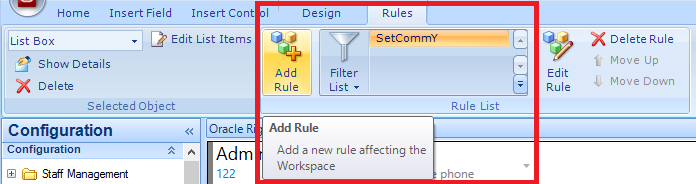
Select the List Box, go to the “Rules” tab “Rule List” section on the ribbon and click “Add Rule”

cb7

Step 6: Create a rule to set the Custom Field after List Box item is ticked

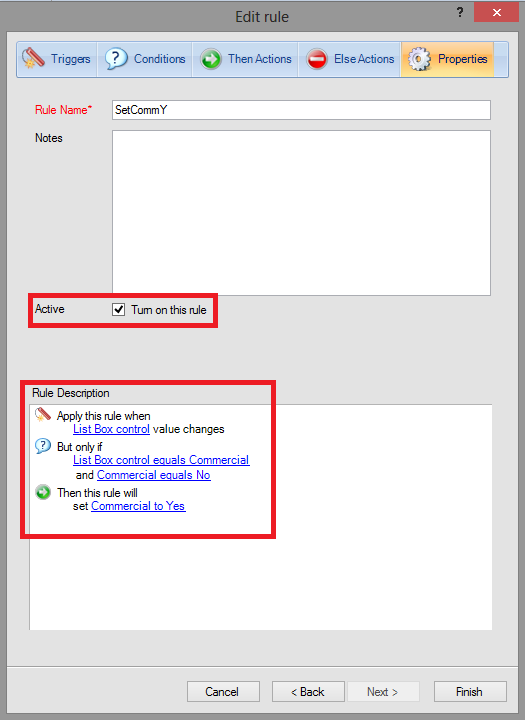
Trigger: An input control value is changes (select the desired List Box)
Condition: An input control has a certain value (select the desired value for the List Box Item)
Condition: A field has a certain value (select the desired value “N” for the related Custom Field)
Then Action: Set the value of a field (set the desired value “Y” for the related Custom Field)

cb8

Step 7: Add a workspace rule to the workspace for when the editor loads

Go to the “Home” tab “Workspace Properties” section on the ribbon and Click “Rules”

cb9

Step 8: Create rules (as many as List Boxes) to tick the List Box items when the editor loads

Trigger: The editor loads
Condition: A field has a certain value (select the desired value “Y” for the related Custom Field)
Then Action: Set the value of an input control (select the desired value “Y” for the List Box Item)

cb10

When this is finished, you should be able to create an Organisation record, select the check boxes you want, save the record. When you come back and open that same Organisation record the check boxes will be ticked as you selected them previously.

Note: Before choosing to create a List Box for each of the options, I tried to do it with only one List Box with many items (one for each of my options). It didn’t work because I realised that workspace rules with the same trigger will work (one after the other, by the order in the list) if the action regards different fields or controls, but not if rules try to set the same control.

Thank you to Mark Kehoe (Independent Oracle RightNow Consultant) for his help on this requirement.

Customer Portal: Staging your changes

After changing the Customer Portal pages in the development area, you can stage them to see how your changes will appear on the production site. Note that the staging area replicates the production site but the pages are not yet exposed to the customers.
Step 1: Click the Configuration button on the navigation pane.

Step 2: Double-click Customer Portal under Site Configuration.

Step 3: Select the interface you want to stage from the Interfaces column.

Step 4: On the ribbon, click the Stage button on the Customer Portal section.

Staging1

The window displays a list of files that have been changed in the development area. By default, all new and edited files are selected to be copied to the staging area, and any files you have removed from the development pages have the Remove From Staging action.

Step 5: Edit the Actions if desired and click Next to continue.

Staging2

Step 6: In the second tab Version Changes to the framework or widgets are displayed. Select Yes if you want to push any framework or widget version changes, and click Next to continue.

Staging3

Step 7: In the third tab Select Configurations page set mapping differences are displayed. By default, No Action is selected for the listed page sets, but if you have disabled a page set, the action will be Remove From Staging. Click Next to continue.

Staging4

Step 8: The fourth tab Stage summarizes the selections from the earlier pages of the staging process.

Staging5

Step 9: Add a comment and click Stage button, to pass your changes from the development to the stage area.

Staging6

Staging7

Step 10: Confirm you want to stage changes by clicking Stage button on the confirmation pop up window.

Staging8

Step 10: Wait whilst all the files changed are compiled and copied to the staging area

Staging9

Step 11: Confirm that your staging process is complete with the message “Staging completed successfully“.

Staging10

Now that you staged your changes, you are ready to Promote them to Production. This will be addressed in a another post.

Customer Portal: Edit pages usign WebDAV and Text Editor

As it was stated before, to create or customize the Customer Portal pages, you will need a WebDAV client to download/upload the files, and you will use a text editor to edit the files. This post shows how to do it.

Step 1: Download and install a WebDAV software. Oracle recommends Cyberduck.

Step 2: Run Cyberduck and open a new connection.

webdav0

Step 3: Set up a connection to your Customer Portal:

If you input your RightNow Customer Portal site on the Server field, the URL and port should come automatically. Then un-tick the Anonymous Login check box, input your admin credentials and click Connect.

webdav1

Step 4: Open the folders and sub-folders until you find the file you want to change (in this case we went to the home.php file by navigating to cp/customer/development/views/pages)

webdav2

Step 5: Select the file you want to change, right-click and choose Download to save the file in your local machine.

webdav3

Step 6: Open the downloaded file in a text editor, change it and save it.

webdav4

Step 7: Go back to Cyberduck, right-click the file you want to update and choose Upload.

webdav5

Step 8: To check your changes open a browser, navigate to your Customer Portal admin site (http://example.rightnowdemo.com/ci/admin) and click View Development Area.

webdav6

Step 9: Make sure that the Customer Portal you are viewing has the Customer Portal Development Area sign on top.

webdav7

Customer Portal: Basic config on Admin interface

Before getting started with the customization of the Customer Portal pages and widgets, some basic configuration is necessary on the administration interface.

Assign permissions to staff members

Permissions have to be given to the staff members. An Admin can grant the following types of permissions through a staff member’s profile:

  • CP Edit permission lets staff members with this profile access the Customer Portal Administration site and edit customer portal pages in the development area using WebDAV. Staff members with CP Edit permission, but not CP Stage or CP Promote permission, cannot access the Customer Portal editor on the administration interface. Nor can they access the Deploy tab on the Customer Portal Administration site.
  • CP Stage permission lets staff members copy the development files to the staging area. Staff members with CP Stage permission but not CP Promote permission will not have the Promote and Rollback buttons enabled on the Customer Portal editor on the administration interface.
  • CP Promote permission lets staff members promote the pages from the staging area to the production area where customers can view them.

Note: Staff members who have CP Stage permission automatically have CP Edit permission as well. Staff members with CP Promote permission automatically have CP Edit and CP Stage permissions.

To assign permissions for your customer portal:

  1. Click the Configuration button on the navigation pane.
  2. Double-click Profiles under Staff Management.
  3. Double-click the profile you want to assign permissions to.
  4. Click the Permissions button on the ribbon.
  5. Give staff members the permissions (editing, staging, or promoting).

permissions

Define configuration settings

The Customer Portal gives complete flexibility in creating templates, pages, and widgets. However, other configuration must occur on the administration interface. Configuration settings are used to define common features of the Customer Portal.

  • Enabling the development area: MOD_CP_DEVELOPMENT_ENABLED must be enabled before any changes can be made to the development site. If this setting is not enabled it is not possible to make changes to the Customer Portal.
  1. Click the Configuration button on the navigation pane.
  2. Double-click Configuration Settings under Site Configuration.
  3. To open a specific configuration setting, type its name in the Key field and click Search.
  4. To display all configuration settings, click the Search button.
  5. Type MOD_CP_DEVELOPMENT_ENABLED it in the Key field and click Search
  6. In the row for the configuration setting, click the drop-down menu in the Value column and select Yes.

MOD_CP_DEV_ENABLED

Now that you have enabled your development area, you can begin editing other configuration settings that affect your customer portal.

Modify settings for pages on the Customer Portal

Some other general configuration settings, accessed through the administration interface, control functionality. For example, these settings let you configure searches, including how search results are returned, whether suggested searches are enabled, and whether search text feedback is given to customers.

You can configure the following pages:

  • Answers page: Configuration options include answer solved count, search results, search-field weighting, suggested searches, search text feedback, the aliases word list, search priority words, and stop-words.
  • Answer details page: The configuration option for the answer details page is the privileged answers feature.
  • Ask a Question page: You can configure SmartAssistant suggested answers for the Ask a Question page as well as specify an expiration time during which the form must be submitted.
  • Your Account pages: Configuration options include disabling an email link to a customer’s incident in confirmation emails, letting customers see all incidents from their organization, defining the length of time an answer subscription stays active, and allowing duplicate email addresses.
  • Log In, Create an Account, and Change Password pages: You can configure the security and strength of customer passwords.

Customer Portal: Folder Structure

The Customer Portal incorporates an intuitive, easy-to-navigate file structure that lets you clearly identify the files you can edit. The main directory is called cp, and it includes the following main folders:

  • The core folder: All the non-editable Customer Portal files.
  • The customer folder: The Customer Portal files you can edit, including all pages and custom widget files used on your development site, as well as assets (CSS, images, and themes) and error pages.
  • The generated folder: All staged files and all files you have promoted to your production site.
  • The logs folder: Logs for each staging, promoting, and rollback operation.

Core Folder

The core folder contains all of the underlying Customer Portal code. You cannot add or remove files in this folder, nor can you edit any of the folder names or files.

  • assets: The core/assets folder contains all web assets used by the Customer Portal Administration site, organized in the following subfolders: debug-js, default, ejs, and images. The default subfolder contains the CSS, images, and themes for the pages, templates, and widgets in the reference implementation. You can always use these files to view and revert to the reference implementation.
  • framework: This folder is the core of the Customer Portal code base and contains all view files for the pages and templates. It also contains files and information about version changes, controllers, libraries, models, and utilities.
  • widgets: The widgets folder contains the files for all standard widgets, including controllers, views, CSS, images, logic, and YAML information files. You can use these files to the view the code for the standard widgets.

cp_folder_structure_core

Customer Folder

The customer folder contains all the Customer Portal files you can modify, organized in the following subfolder structure.

  • assets: This folder contains the assets you can add, edit, and delete, including the subfolders css, images, and themes. Assets include all files for your customer portal that are not pages, templates, or widgets, including CSS, JavaScript, images, video, and other rich web media. You can add, remove, edit, and execute files and add subfolders to the assets folder. In addition to the css and images subfolders, the assets folder includes a default subfolder that contains default versions of the asset files provided in the reference implementation. If you make changes to any of the assets and then decide to revert to the standard assets, you can copy them from the default subfolder.

Important Note: With the exception of the themes subfolder, all other files in the assets folder are shared by development and production files. Even if you don’t stage and promote your development pages, changes you make may affect the look and function of your production pages. For example, if production pages call a file in the assets folder and you modify that file in the course of your development work, the change will be immediately visible to your customers.

Important Note: Although all other files in the /cp/customer/assets/ folder are shared between the production and development areas, files in the themes subfolder of /cp/customer/assets/ are used strictly by the development files. When you stage the develop- ment pages, these files are copied to a time-stamped folder in the staging directory and called from that folder. The themes you develop are kept in this isolated sandbox that cannot be accessed by production files. The themes are applied to your production site only when you promote the staged files into production.

  • development: The development folder is your working folder, containing all templates and pages to create and update your customer portal. It contains the following subfolders.
  • error: Contains three editable error pages and splash.html, which is a page displayed to customers when your site is being upgraded. You can edit the splash file to display whatever information you want.

cp_folder_structure_customer

Generated Folder

The generated folder contains two subfolders: production and staging, which mirror the structure of the /cp/customer/development subfolders. The staging subfolder contains the development files that you have staged through the CX Console or the Customer Portal Administration site. Your customers cannot see the files in the staging folder. The production subfolder contains the staged files that have been promoted into production. Those files are visible to your customers. Both subfolders also have a backup subfolder that contains the original source code from the previous staging and promoting activities. The staging folder includes a themes subfolder that is copied from your development site when you stage the development pages. These folders allow the rollback function. None of the files in the generated folder can be edited or deleted. Nor can you add any files.

cp_folder_structure_generated

The logs folder

The logs folder contains logs for every stage, promote, and rollback operation performed on your site as well as a log that documents changes made to Customer Portal files so you can see when and by whom the files were modified.

Customer Portal: File Structure and Page Sets

The Customer Portal is the company’s customer support interface, where customers can search for information, submit questions to the support team, request chat sessions or even ask the peer-to-peer community (if there is one) for help. Normally the Customer Portal is embedded on the company’s website.

The configuration of the Customer Portal is done by editing Templates, Pages, and Widgets which are part of the site. So it is important to understand the structure of the Customer Portal. Other Customer Portal configurations can be done through the Admin interface (aka Agent Desktop or Console).

Before going deeper on the Customer Portal stuff, it is important to keep in mind the following:

  • There is something called the reference implementation that is the set of default pages and files that make up the Customer Portal as it exists before you configure and customize it. There are two default reference implementations: one for the standard pages (desktop browsers) and one for display on mobile devices.
  • To create or customize the Customer Portal pages, you will need a WebDav client to download/upload the files, and you will use a text editor to edit the files.
  • To set up other functionalities – such as SmartAssistant and search options – you will use the Admin interface (aka Agent Desktop or Console)

Customer Portal File Structure

As stated before the templates, pages, widgets, and other assets used to create the Customer Portal are available through WebDAV.

The customer portal uses WebDAV to help you manage your website files. WebDAV offers a familiar file structure, easy uploading and downloading of multiple files, and file security through login access. After you set up a WebDAV connection to upload and download files, you can use any text editor you want to create and edit files for your customer portal, or you can use Adobe Dreamweaver, which uses its own WebDAV protocol for site management and configuration (Oracle recommends using Cyberduck for WebDAV access to Customer Portal files)

Important Note: You must enable MOD_CP_DEVELOPMENT_ENABLED before you can make changes to your development site. If you do not enable this setting, you cannot make changes to your customer portal and your customers will see the default reference implementation with no customization.

To view the Customer Portal files from the Customer Portal Administration site, using a URL:

  1. In a web browser, type http://<your_site>/dav.
  2. If you have not already logged on to the Customer Portal Administration site, enter your RightNow user name and password.
  3. Click the cp link to display the folders.
  4. Click the folder you want to display files for and continue drilling down through subfolders to display the file you want.
  5. When you click an individual file name, it will open

Important Note: Although it is possible to edit files directly on the server, it is recommended downloading files to the local workstation, making changes locally, and then uploading them back to the server.

CP_Pages_via_URL

Page sets

The Customer Portal contains four sets of pages, each of which can be viewed from the Customer Portal Administration site.

  • Development files: These are the files to work with when you want to make changes to the Customer Portal. They cannot be seen by the customers until you stage and promote them. The page and template files are in the /cp/customer/development/views folder, and the custom widgets are in /cp/customer/development/widgets/custom.
  • Staging files: After editing the development pages, you can stage them, which means they are compiled and optimized to look and perform as they will on the production site. These files, located in /cp/generated/staging, are not editable, nor are they visible to the customers.
  • Production files: The production files, located in /cp/generated/production, have been promoted from the staging site and are visible to the customers.
  • Reference implementation files: These are the default, read-only files that make up the original customer portal reference implementation before you modify them. They are located in /cp/core/framework/views and /cp/core/widgets. If you’ve made changes to one of your development files that you don’t want to keep, you can revert to the original file by copying the original from its reference implementation folder and pasting it to the appropriate subfolder in /cp/customer/development, effectively overwriting your changes.

Calculated field using JavaScript API

I have created a “Date of Birth” Custom Field (Type: Date) on the Contact object, and my requirement was to create a field that would display the Age of the Contact, based on the “Date of Birth” field.

For that I used the Connect Desktop Integration (JavaScript API), and did the following:

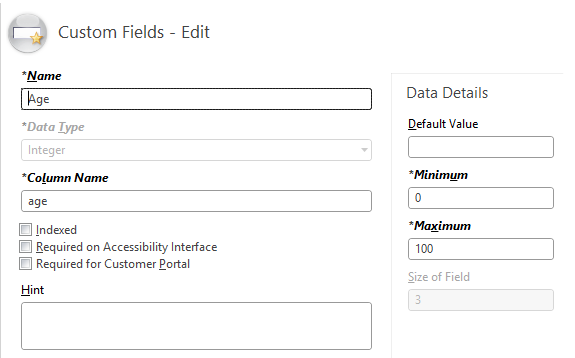
  • Step 1: Create a Custom Field (Type: Integer) in the Contact object with the name “Age”, and add the field to the Contact workspace.

img1

  • Step 2: Create an HTML file with code to calculate the Age and set the “Age” field.

<html>
<head>
<script type=“text/javascript”>
function SetAge()
{
var dobInt = window.external.Contact.GetCustomFieldByName(“c$date_of_birth”);
if (dobInt == –1)
{
var textna = “N/A”;
window.external.Contact.SetCustomFieldByName(“c$age”, textna);
return;
}
var dob = new Date(dobInt * 1000);
var now = new Date();
var yearAge = now.getFullYear() – dob.getFullYear();
var monthNow = now.getMonth() + 1;
var monthDob = dob.getMonth() + 1;
if (monthNow < monthDob || (monthNow == monthDob && now.getDate() < dob.getDate()))
yearAge–;
window.external.Contact.SetCustomFieldByName(“c$age”, yearAge);
}
function ondataupdated(obj)
{
SetAge();
}
</script>
</head>
<body onload=SetAge()>
</body>
</html>

  • Step 3: Upload the HTML file to a server via FTP and take the URL.
  • Step 4: Add a new tab to the Contact Workspace and drag and drop a browser control into the tab

img2

  • Step 5: Select the browser control, go to the Design tab > Options section, and put the URL of the HTML file into the URL field.

img3

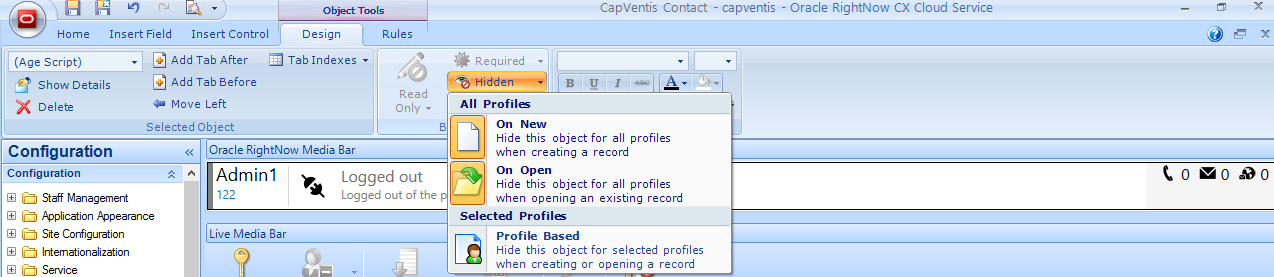
  • Step 6: Select the new tab, go to the Design tab > Behavior section, click the Hidden button and make the tab hidden “On New” and “On Open.

img4

  • Step 7: Select the browser control, go to the Design tab > Options section, and un-check the Delay Page Load check box.

img5

Now, whenever you open a contact that has “Date of Birth” populated, the script will calculate the Age and set the “Age” Custom Field with the right value.

img6

You might also want to make the “Age” field read only so that its value is only set by the script and not by the user.

Important Note: The date fields only allow to go back to 1970, which in this case of Date of Birth is a bit limited.

Thank you to Jens Lundell (Oracle RightNow Workflow Development Manager) for his help on this requirement and to Mark Kehoe (Independent Oracle RightNow Consultant) for raising the date limitation issue.

Google Maps on RightNow CX

RightNow CX gives us the ability to put Web Browser controls in workspaces so that agents using the Dyanamic Agent Desktop can navigate on the Internet without having to leave the Console.

Using that we can easily embed Google Maps on RightNow CX, and quickly see the customer’s address using the information in the RightNow knowledge base.

  • Step 1: Open the workspace and add a new workspace tab
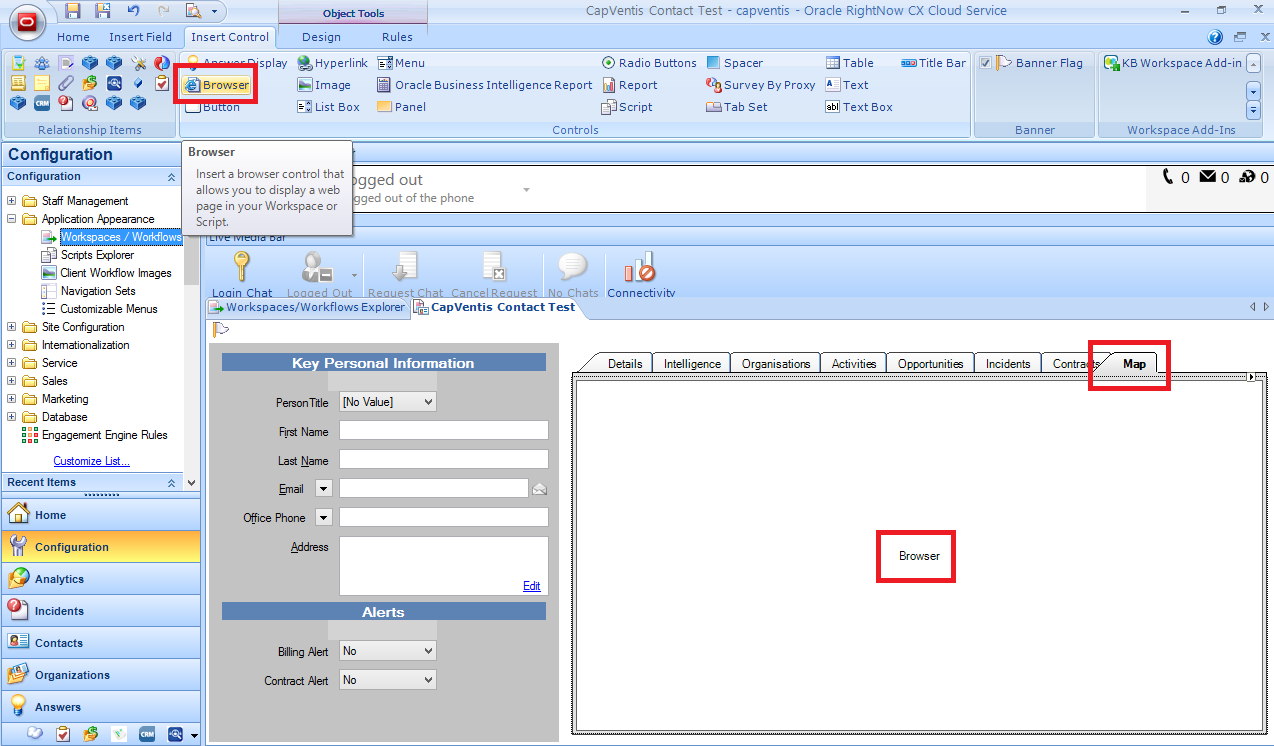
  • Step 2: Go to the Insert Control tab and drag/drop a browser control into the workspace tab

maps1

  • Step 3: Select the control in the workspace tab, go to the Design tab > Options section, click URL and insert the following link 

http://maps.google.com/maps?q=$contact.addr.street+$contact.addr.city+$contact.addr.postal_code

maps2

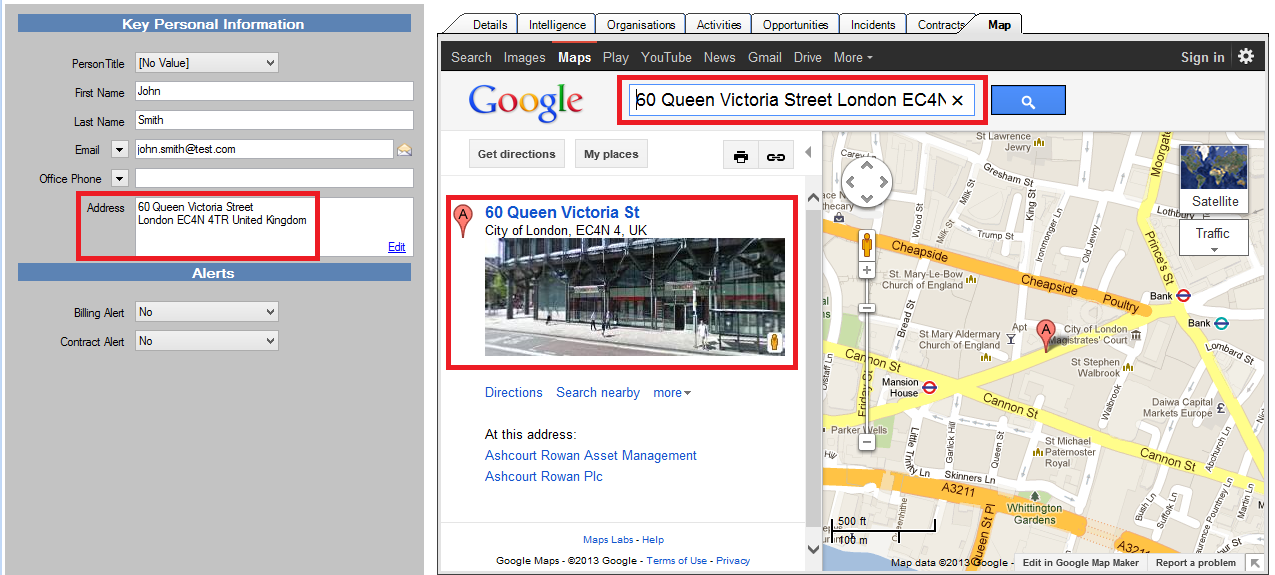
Now, whenever you open a contact, and navigate to the “Map” tab, you will automatically see the customer’s address on the map.

maps3

Change Tab Set size

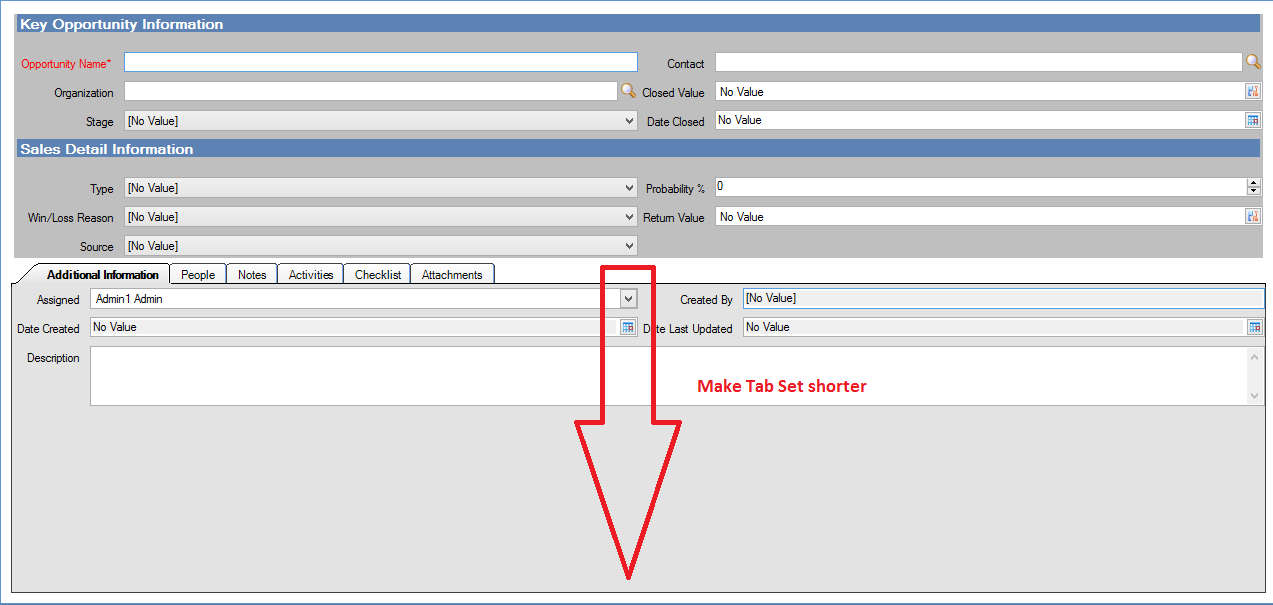
Sometimes the Summary area in the Workspace is too short for all the fields that we have to display, and we don’t want users to be forced to scroll down. Therefore we need to make the Tab Set shorter in order to have more room for the summary.

tabset

To make the Tab Set shorter you have to do the following:

  • Select the Tab Set (not just one of the tabs) with the mouse or by going to the Design tab and select “Tab Set” in the Selected Object picklist.
  • In the tab Design notice the Options section and click Summary Panel Height.
  • Adjust the the Tab Set by choosing the height.

tabset1