Cloud Monitor: Facebook Channels

Cloud Monitor allows your company to monitor and participate in conversations on the Social Networks, interacting with the customers through Facebook, Twitter and listening on YouTube, Blogs or other RSS Feeds. From the searches in the Cloud Monitor agents can create incidents to pro-actively communicate with customers and follow up customers’s issues and also identify trends or experiences.

Social Channels have to be set up in order for RightNow to be able to search the Social Networks for posts and comments related to your organization and its products/services. These channels include Facebook, Twitter, YouTube, and RSS feeds.

Facebook
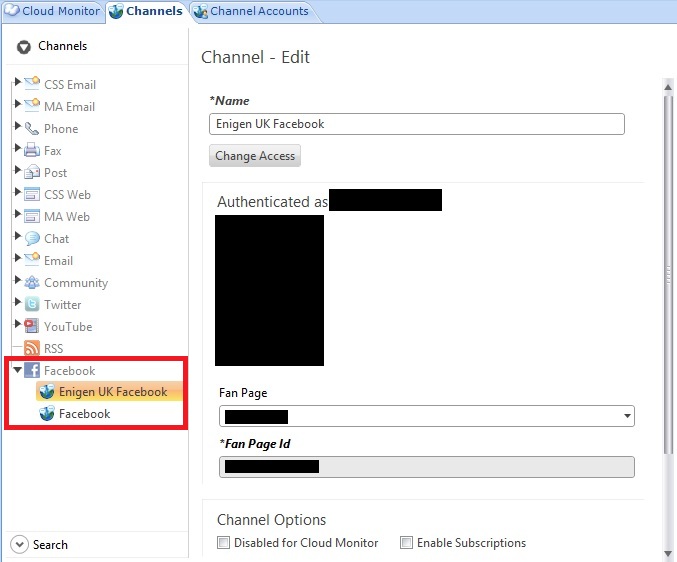
RightNow CX provides a default Facebook channel that you can access through the social monitor to perform searches of Facebook’s public feed. In addition, you can add custom channels to focus your searches to specific Facebook pages. By adding a custom Facebook channel, you can perform cloud searches that are confined to the posts on your organization’s
Facebook page.

To add a custom Facebook channel:
1. Click the Configuration button on the navigation pane.
2. Double-click Channels under Service in the configuration list. The Channels tree displays.
3. Click Facebook and then click the New button on the ribbon to display the editor.
4. Type a name for the custom channel in the Name field.
5. Click the Grant Access button. The Facebook Login window displays.
6. Type the email address and password for the Facebook account associated with the page.
7. Click the Log In button to sync the account with the channel you are creating.
8. Enter the necessary field information (Fan Page, Fan Page Id, etc).
cm1

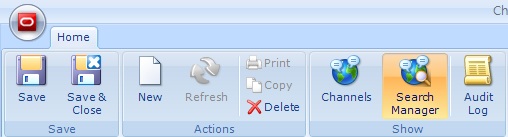
Note: Once the channel is saved and has been used to perform cloud searches, the Search Manager button on the Channels editor ribbon will become active. This function provides access to a utility for managing cloud searches by channel
cm3

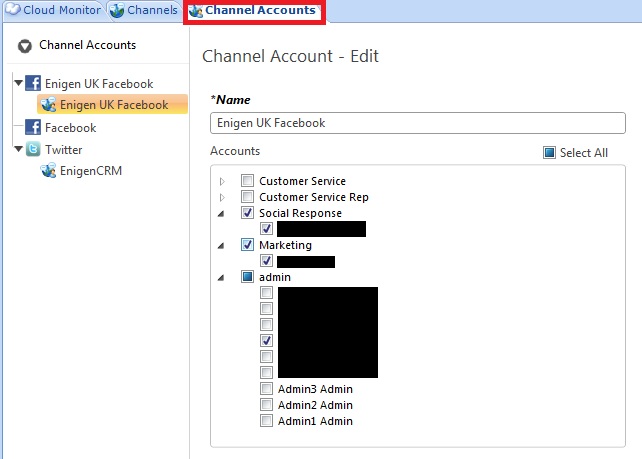
If you want your staff to be able to interact with customers on Facebook, you can also define a channel account to permit specific staff members to monitor your Facebook pages and send responses (Note: when agents reply to Facebook posts, their replies appear to come from the fan page and not from individual persona).

To provide staff access to a Facebook channel account:
1. Click the Configuration button on the navigation pane.
2. Double-click Channel Accounts under Service. The Channel Accounts tree display.
3. Click the arrow next to a Facebook custom channel to expand it and then click its contained channel account to display it on the editor.
4. Type a name for the Facebook channel account in the Name field
5. Select a group check box to associate all staff members in the group with the channel account or expand the group to select staff members individually.
cm2

Feedback: Create Surveys

Once you have defined the questions you want to ask, you can easily present them to your audience in surveys. RightNow Feedback contains flexible tools for creating custom surveys in a variety of formats. Surveys can be:

  • Sent as mailings
  • Served as web pages
  • Sent as events triggered by a campaign or business rule.

With a wide range of formatting and customization options and full analytics integration for tracking results, surveys provide you with a powerful channel for inviting, gathering, and analysing customer feedback.

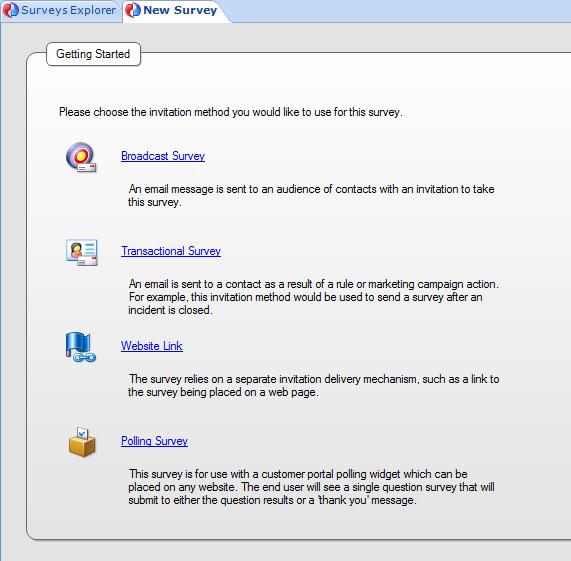
You can create four types of surveys, distinguished by invitation method:

  • Broadcast surveys are used to send broadcast invitations to specified audiences at a time you choose.
  • Transactional surveys send invitations triggered by events that you define, such as an incident resolution or a campaign action.
  • Website link surveys rely on separate invitation delivery mechanisms, such as a link to the survey placed on a web page.
  • Polling surveys display as a single question on a customer portal page or any page that is external to the customer portal, such as a “Poll of the Day”. After customers submit their response, they see a poll results chart or a thank-you message.

Although available features vary by invitation method, every survey is presented through a web page and can be linked to from outside of RightNow CX. With the exception of polling surveys, surveys can be added to workspaces, letting your agents complete surveys by proxy (on behalf of contacts) during telephone interactions.

To create a survey

1. Click the Surveys button on the navigation pane and double-click Surveys Explorer.

2. Click the New button on the ribbon. A new survey opens on the content pane.

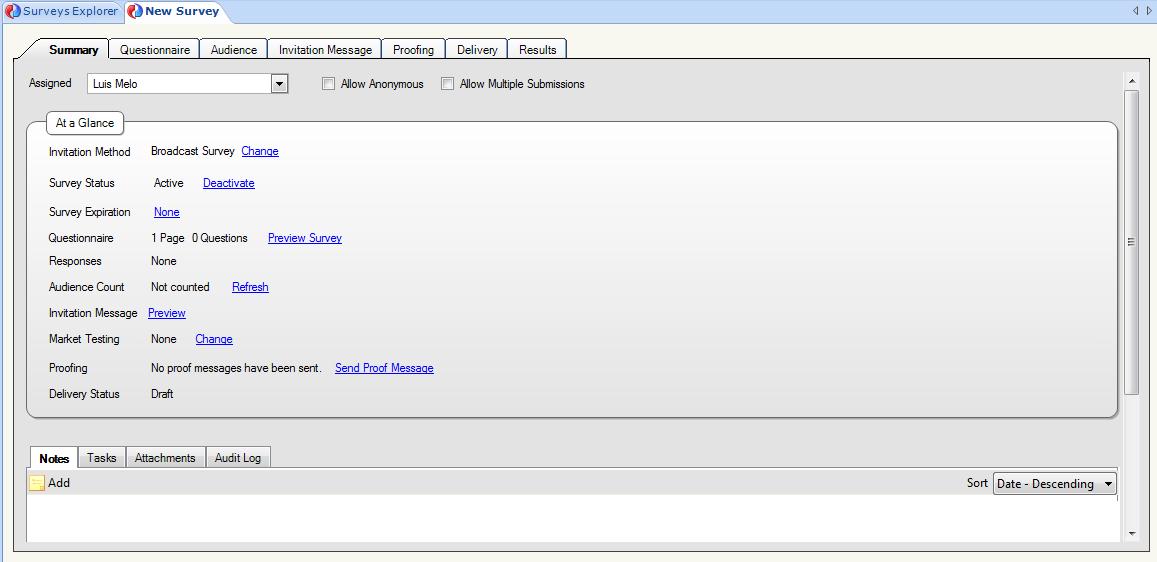
imga

3. Choose the type of survey (in this case we will select Broadcast Survey).

imgb

4. To let customers answer the survey anonymously, select the Allow Anonymous check box.

5. To let customers submit the survey more than once, select the Allow Multiple Submissions check box.

6. Use the At a Glance section to perform common survey functions

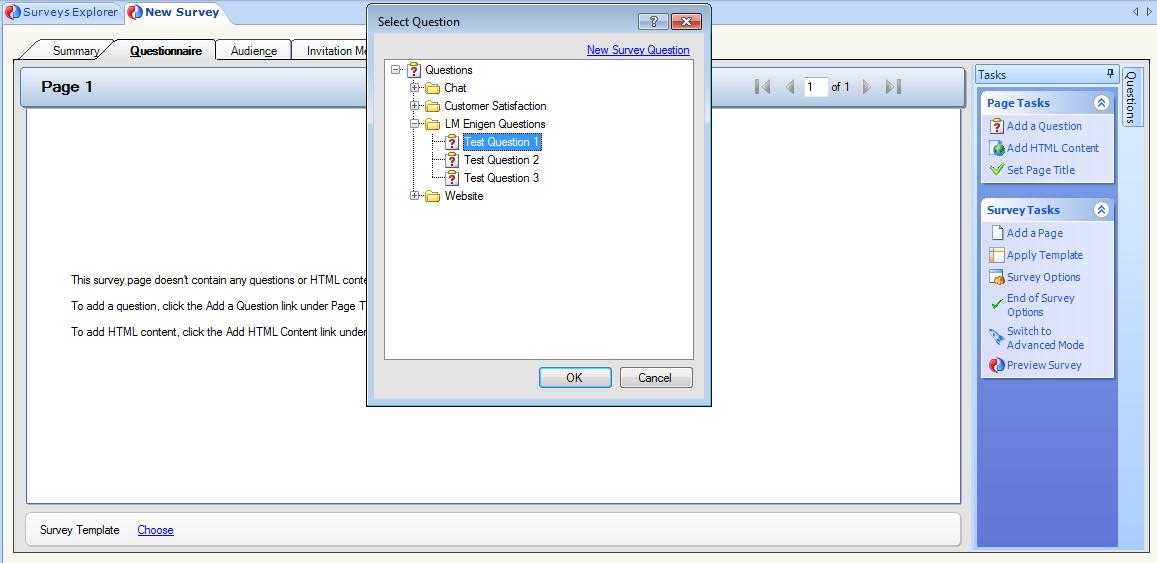
7. Click the Questionnaire tab to add questions and HTML content to the survey.

imgc

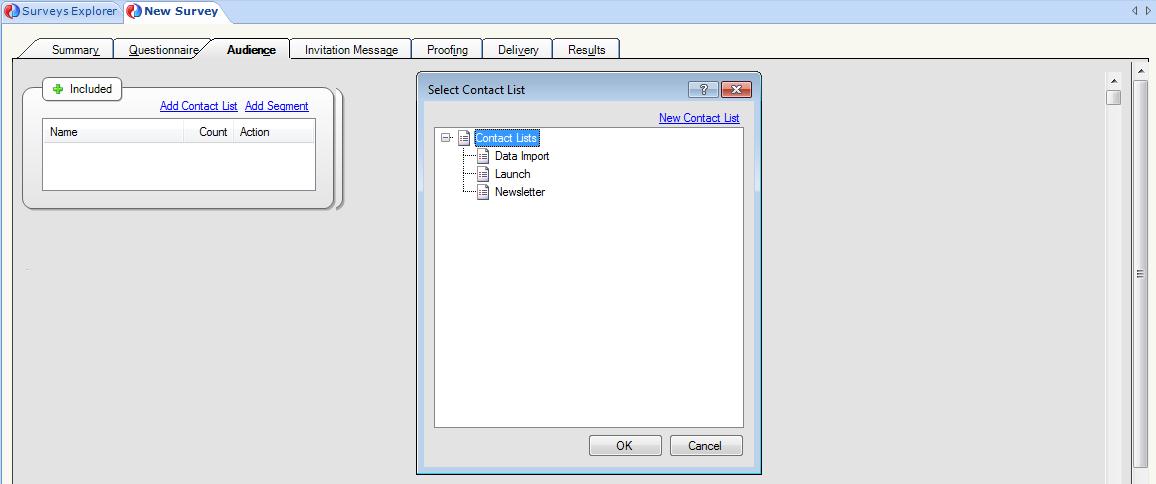
8. Click the Audience tab to define an audience for the survey

imgd

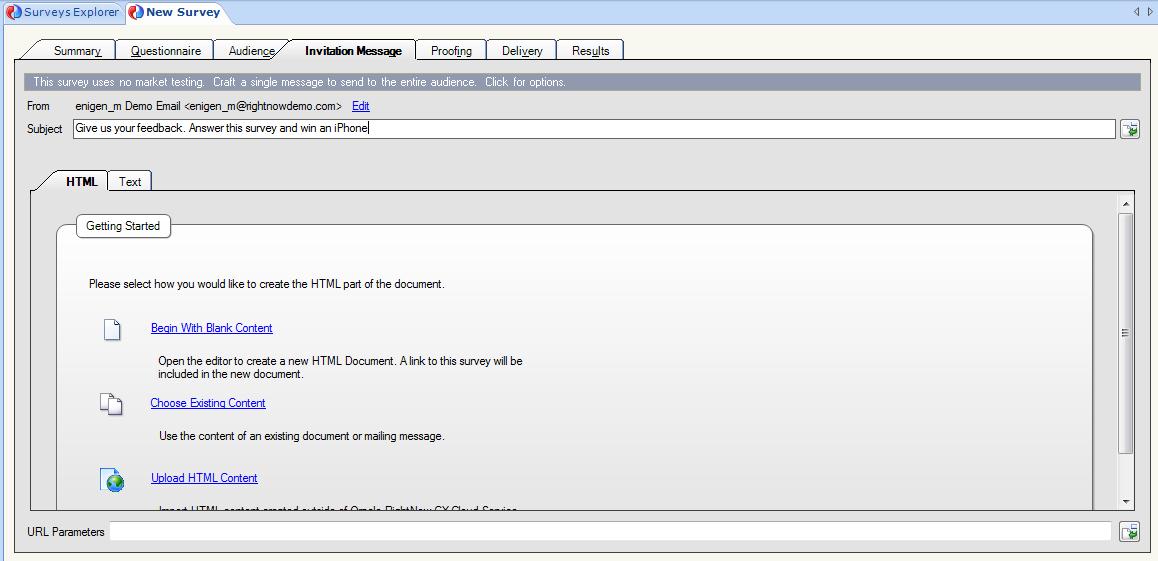
9. Click the Invitation Message tab to create the message sent to the survey audience

imge

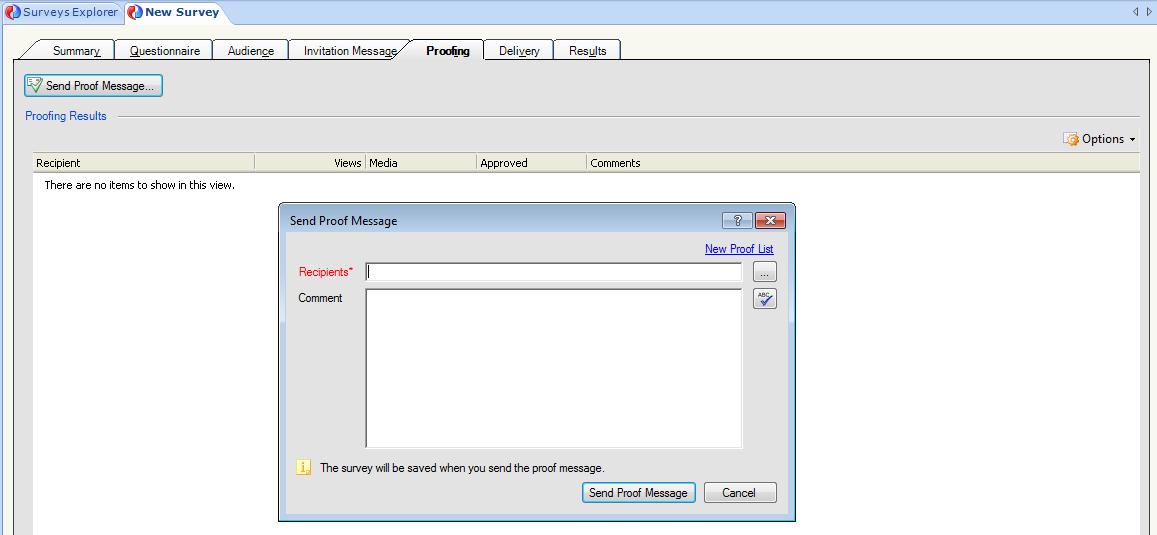
10. Click the Proofing tab to send a proof of the email for internal review before sending it to the entire audience

imgf

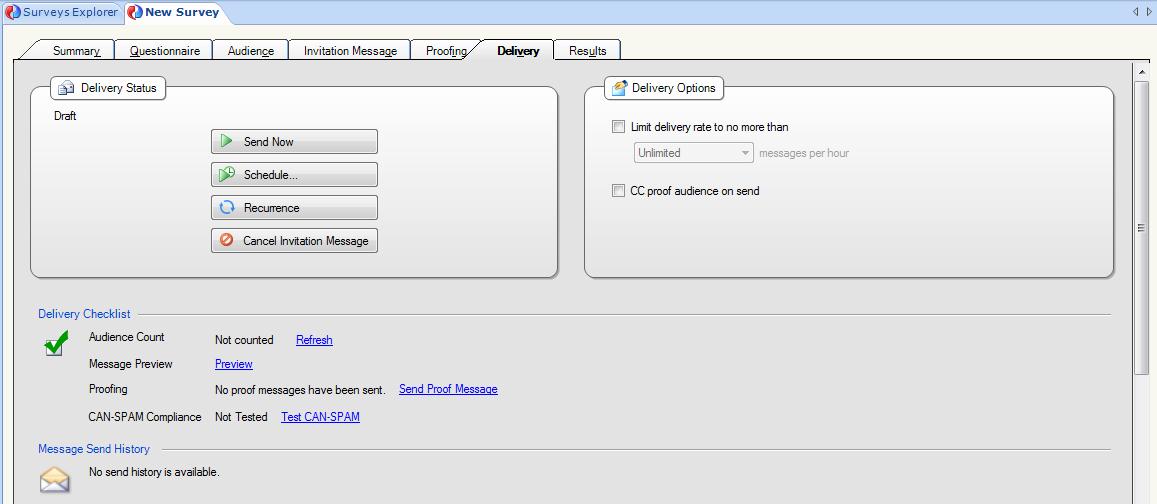
11. Click the Delivery tab to select delivery options

imgg

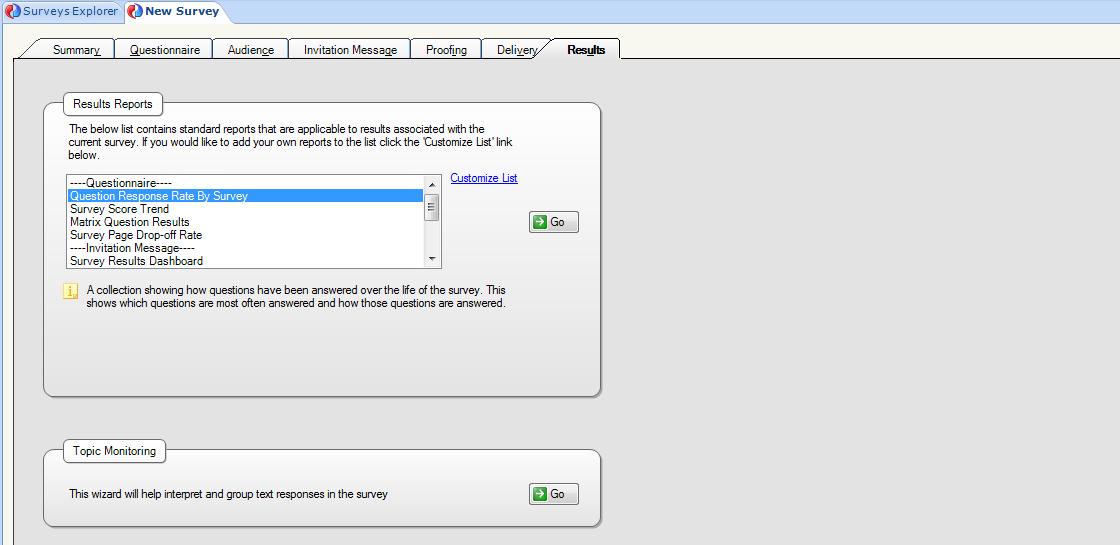
12. Click the Results tab to view the report associated with the survey

imgh

13. To preview the survey, click the Preview Survey button on the ribbon. The survey preview opens in a web browser

RightNow Feedback: Feedback Questions

In order to create surveys in RightNow Feedback, you must first create the questions that your respondents will answer. You can choose different question types to gather responses of different qualities, and you can customize display characteristics of each question.

For example, you can provide space for your respondents to enter their answers in their own words, returning data that is often specific and insightful. Alternately, you can offer respondents a choice of prewritten answers to a question, which provides you with a consistent, easily interpreted data set. You can also score choice questions and use RightNow Analytics to evaluate responses as numerical values.

When you create a survey question, you define the question name, type, and text that respondents see on the survey. You can also assign a score to each question choice. When creating questions, you can choose from three question types.

  • Text questions – Text questions let respondents type their answer to the question. You can create text questions when you want your respondents to be able to answer in their own words without having to choose from predefined options (e.g. “Do you have any suggestions?”). When you create a text question, you define only the question and the available space the respondent has to answer.
  • Choice questions – Creating choice questions lets you define the available responses for the question, allowing respondents to choose their answer from a menu, radio button, check box, or list. Choice questions may be scored and evaluated in Analytics.
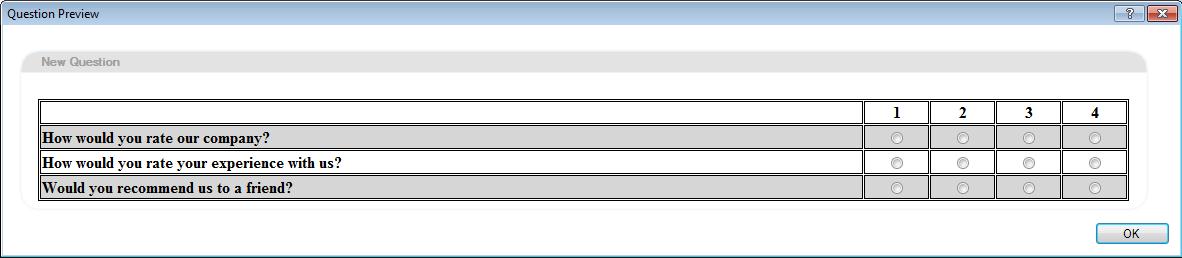
  • Matrix questions – In cases where a series of questions can be responded to with the same set of answer choices, matrix questions can help streamline a survey’s appearance by grouping the questions together in a table. Answer choices are displayed using either radio buttons (to permit only one answer to each question) or check boxes (to allow more than one answer). If you choose radio buttons, you can restrict selections to one choice per row, forcing respondents to rank their answers.

To create a question:

1. Click the Surveys navigation button and then double-click the Questions Explorer on the navigation list.

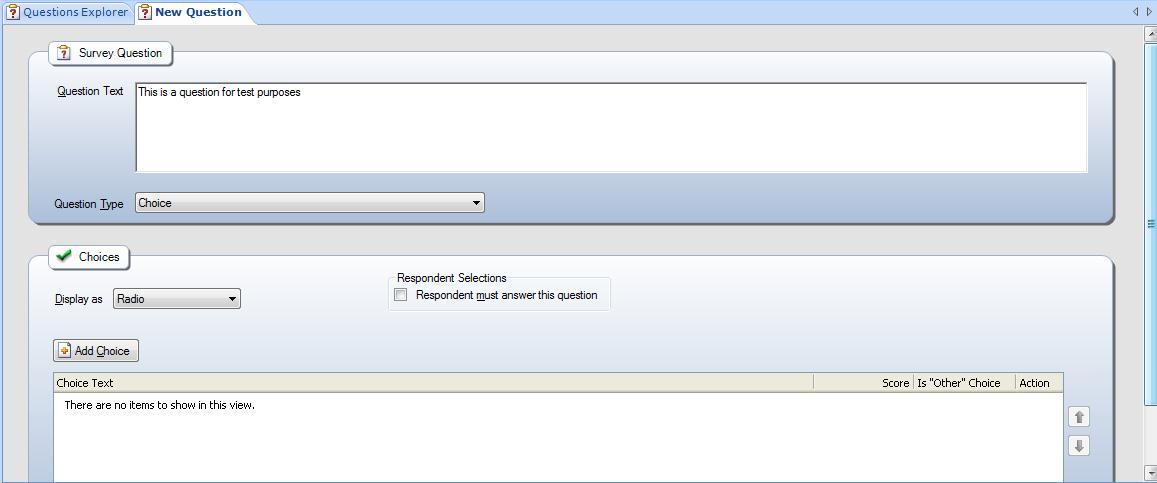
2. From the Questions Explorer, click the New button. A new question opens on the content pane.

img1

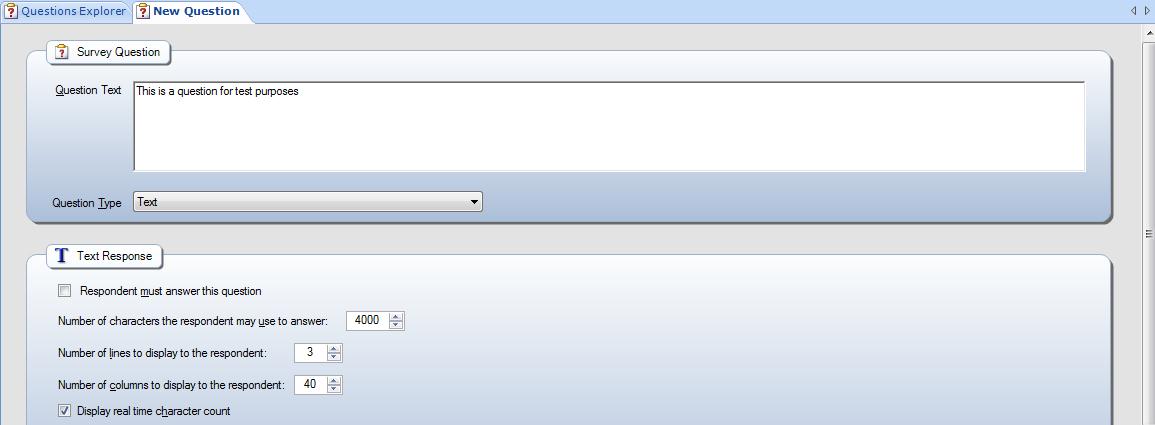
3. Type the text of the question in the Question Text field. This will be the question you want the respondent to answer.

4. Select the Question Type on the drop-down menu.

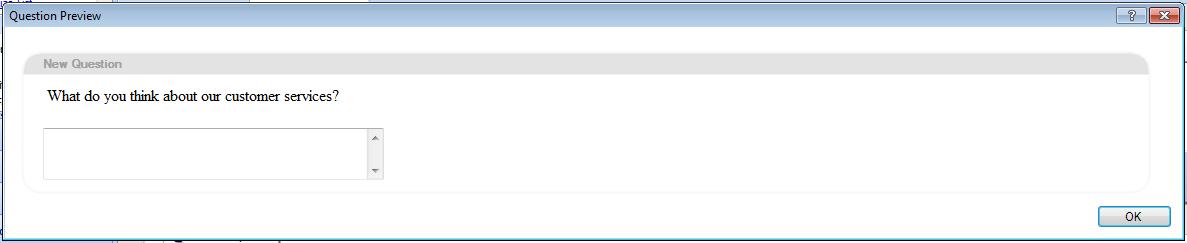
4.1. If “Text“ question type is selected you can make the question required or not, and control the number of characters the customer can use to respond, the number of lines displayed in the answer field, the width of the answer field or if there will be a real time character count displayed.

img2

img3

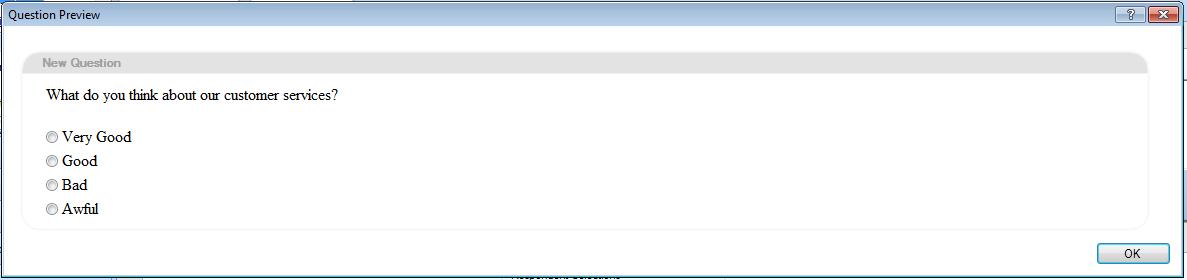
4.2. If “Choice“ question type is selected you can define how the choices are going to be displayed (Radio, Check box, Menu, List), the Respondent Selections (Required, number of choices, etc.), and add the choices. It is also possible to give score to the each choice in order to use analytics afterwards.

img4

img5

4.3. If “Matrix“ question type is selected you can define how the choices are going to be displayed (Radio, Checkbox), the Respondent Row Selections (Required, number of choices, etc.), add the questions and choices. It is also possible to give score to the each choice in order to use analytics afterwards.

img6

img7