Cloud Monitor: Monitoring social channels

Monitoring social channels consists of searching the social cloud to track your organization’s reputation for the products or services it offers. You can manage your favourite cloud searches and subscriptions, schedule cloud searches, ignore or respond to posts, and create incidents from posts. You can also append posts to existing incidents as note thread entries.

By default, cloud search results that are not responded to, ignored, or added to an incident within 7 days are automatically deleted from the system. To change this frequency, modify the setting in configuration settings: PURGE_CLOUD_RESULTS.

The first step to monitoring the social cloud is to add cloud searches so you can search for posts mentioning your organization, products, services, or anything else related to your organization that you are interested in. You can also add subscriptions to monitor all content from an entire Facebook page or RSS feed.

To add a cloud search:
1. Click the Cloud Monitor button on the navigation pane.
2. Double-click Cloud Monitor in the navigation list.
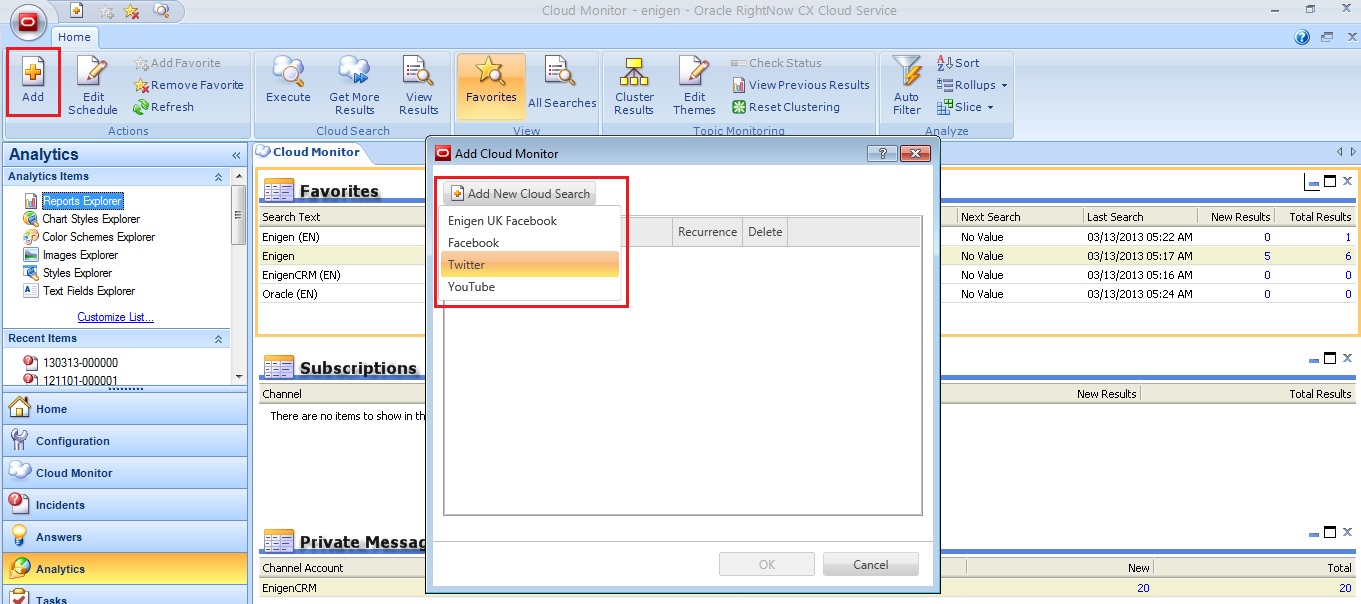
3. Click Add button in the ribbon. The Add Cloud Monitor window will open.
4. Click Add New Cloud Search button and choose the channel from the drop down list.
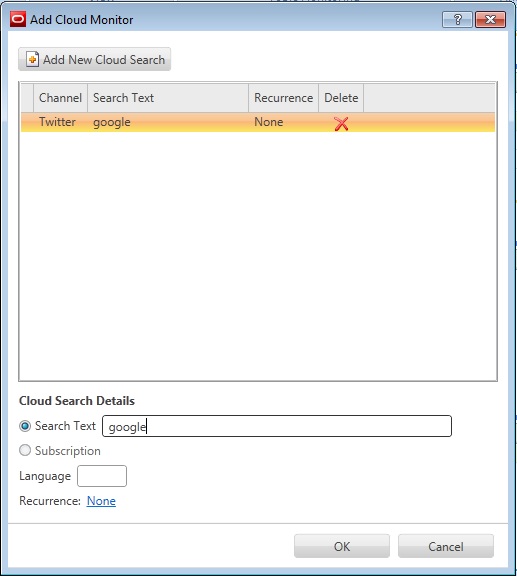
5. Enter the word you want to search for on the Search Text field.
6. Enter the language preferred on the Language field (e.g. for English enter EN).

cm10

cm11

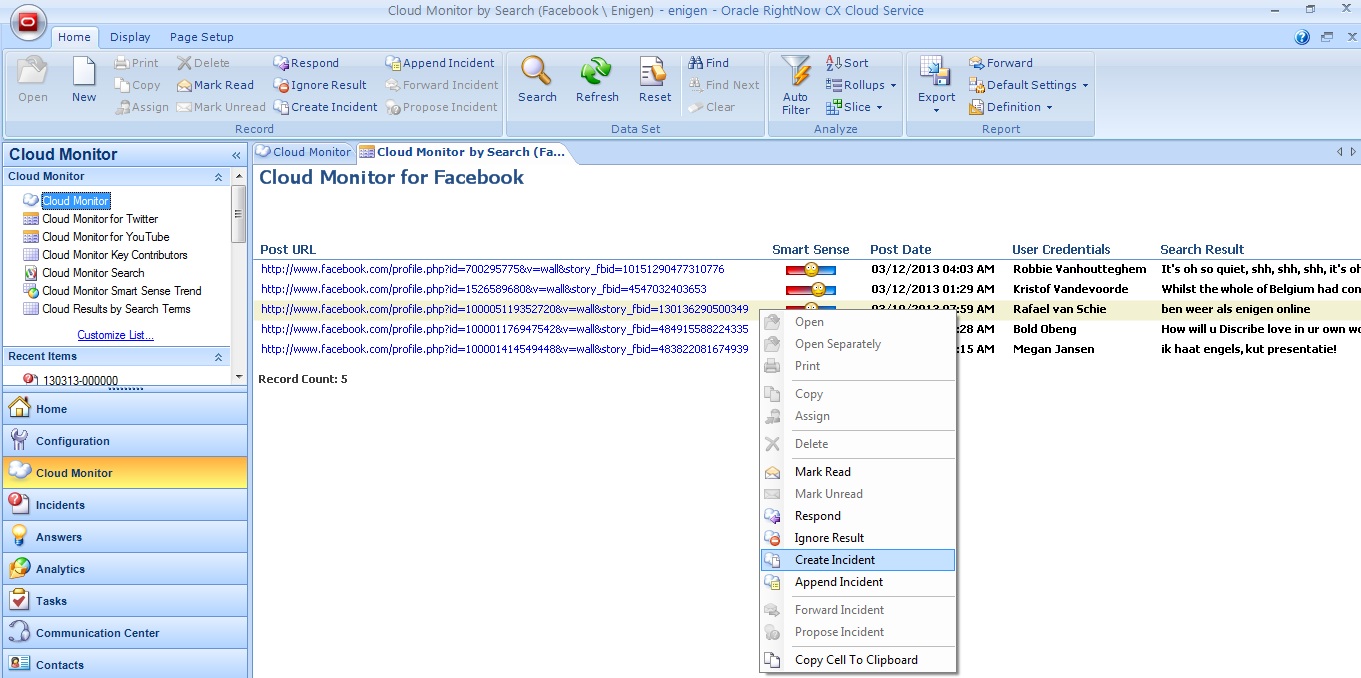
The search will be displayed on the Favourites report on the content pane, where the agent can drilldown on New Results or Total Results to see the detail. The Cloud Monitor by Search report opens and from there agents can respond or ignore posts as well as create incidents from posts or append them to an existent incident.

cm12

cm14

Once an incident has been created for a post, it can be assigned to a staff member from the cloud search report by selecting the post and clicking the Assign button on the ribbon.

In addition to posting public messages, agents can view and respond to private messages received by the organization’s Twitter account. Once you have enabled private message permissions in a Twitter channel account the Dbstatus utility automatically checks for private messages every 15 minutes and displays them on the cloud monitor.

Private message search results function like other cloud search results – you can create incidents from them, append them to existing incidents, mark them read, or ignore them. You can configure each Twitter channel account to automatically create incidents from all private messages it receives.

cm16

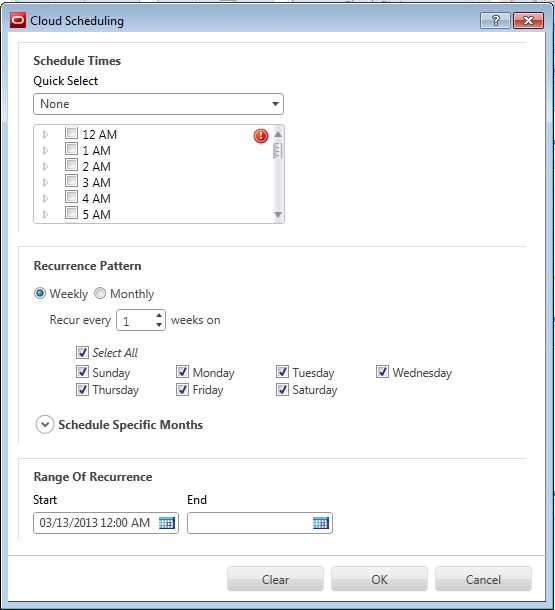
Scheduling cloud searches can save you time and help ensure that you consistently monitor the social cloud. For instance, you could set up a schedule to search once a week on a specific day or schedule a one-time search to coincide with a product release or important organizational announcement. A search cannot be scheduled unless it is marked as a favourite. To schedule a cloud search click the Edit Schedule button on the ribbon. The Cloud Scheduling window opens, where the agent can configure the schedule times.

cm15

Cloud Monitor: Configuration and Overview

Configuration
Before you can monitor the social cloud to search for information related to your organization, you need to configure your application to provide access to the RightNow Cloud Monitor.

To provide access to the RightNow Cloud Monitor it is necessary to:

  • Add cloud monitor to Navigation Sets
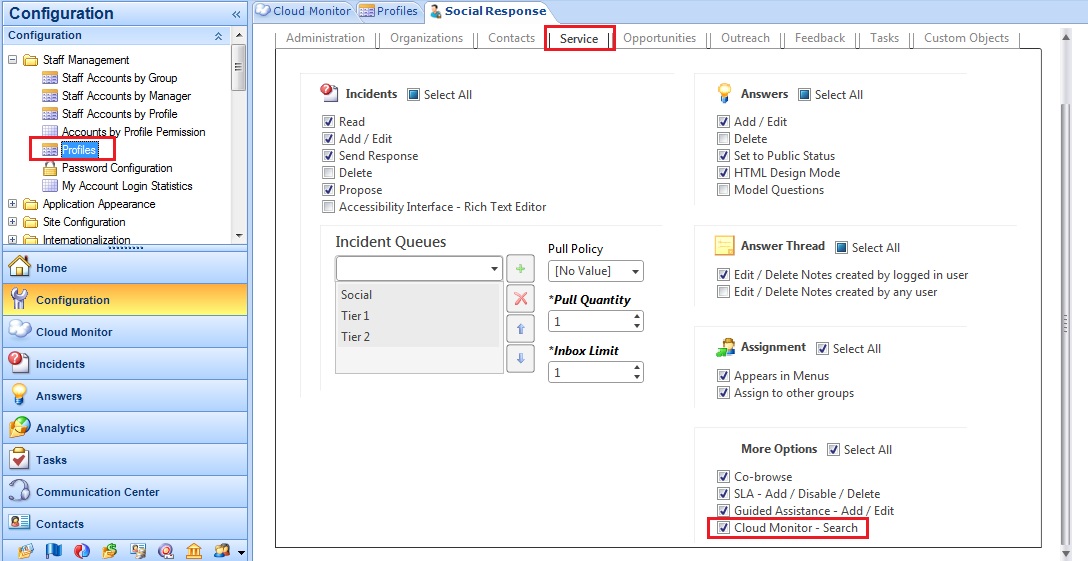
  • Add cloud monitor permission to Profiles

cm6

cm7

Overview
Using the cloud monitor, you can add, execute, and analyse cloud searches for any of the available social channels. As each new cloud search is added, it is listed on the content pane along with information about who added it, what social channel is searched, what text is searched for, the time it was last executed, and how many results have been returned. A search can also be designated as a favourite, which prevents it from being deleted and enables it to be scheduled on a recurring basis.

Twitter, Facebook, RightNow Community, and RSS searches can return a maximum of 100 new results per search instance, while YouTube searches are limited to 50 new results.

The social channels available for cloud searches are configured through the Channels editor. In addition, the Channels editor provides a utility for viewing and managing cloud searches that have been added for each channel. With the Cloud Search Manager, you can view and manage the list of agents who have selected each search as a favourite as well as remove searches that were entered incorrectly or are no longer needed.

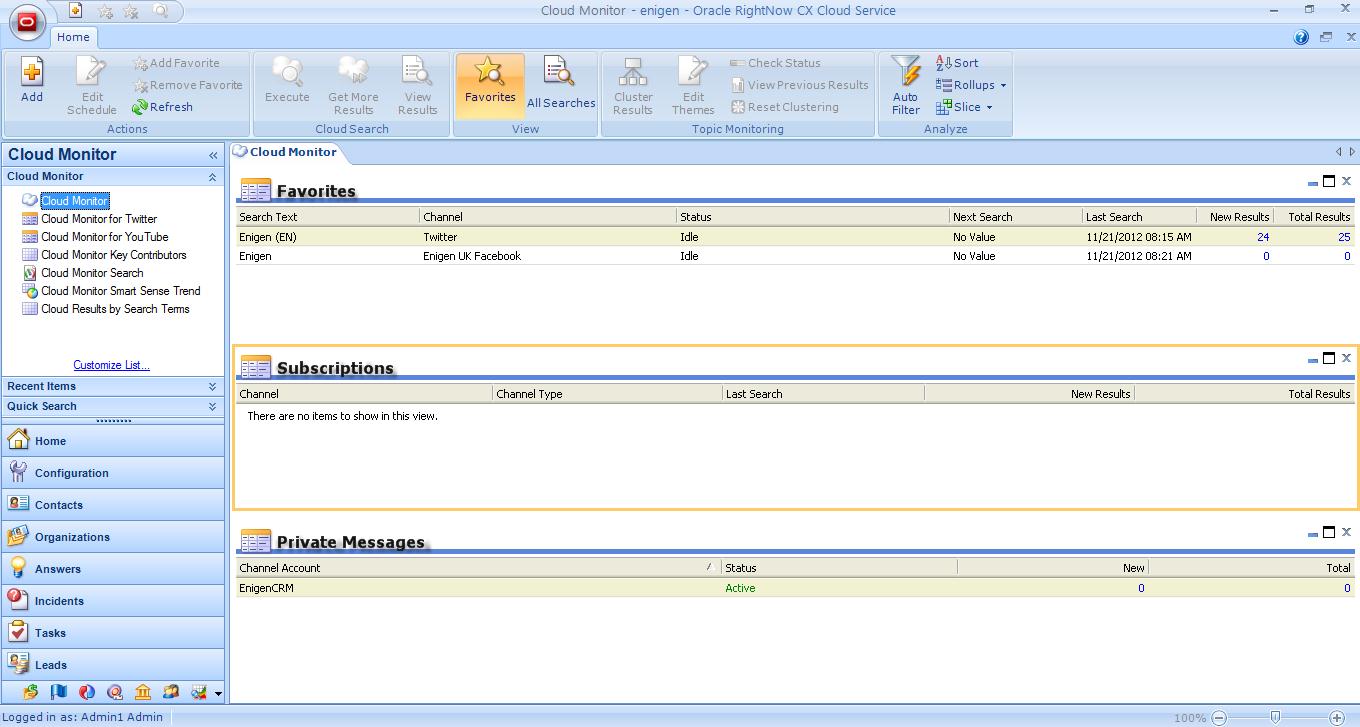
The Cloud Monitor dashboard is divided into 3 sections.

  • Favourites: Contains a list of previous cloud searches. Each time you perform a new cloud search, it is automatically marked as a favourite and added to this section.
  • Subscriptions: Contains a list of cloud searches that have been added on a subscription basis. Refer to Searching the social cloud.
  • Private Messages: Contains messages received through Twitter private messages. Refer to Responding to Twitter posts.

cm8

Cloud Monitor: Twitter Channel

Cloud Monitor allows your company to monitor and participate in conversations on the Social Networks, interacting with the customers through Facebook, Twitter and listening on YouTube, Blogs or other RSS Feeds. From the searches in the Cloud Monitor agents can create incidents to pro-actively communicate with customers and follow up customers’ issues and also identify trends or experiences.

Social Channels have to be set up in order for RightNow to be able to search the Social Networks for posts and comments related to your organization and its products/services. These channels include Facebook, Twitter, YouTube, and RSS feeds.

Twitter
RightNow CX provides a default Twitter channel that you can access through the cloud monitor to perform searches of Twitter’s public feed. In order to monitor the public feed, you must first create a Twitter channel account and then select it from the Twitter channel editor.

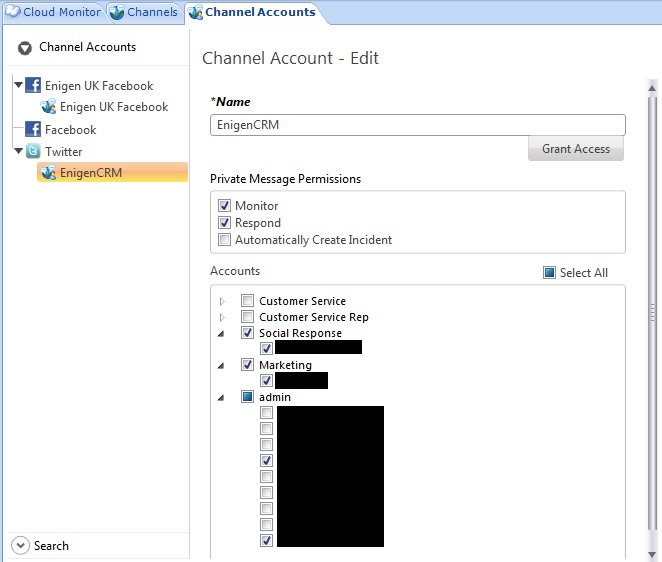
Channel accounts enable agents to monitor, automatically create incidents, and send responses publicly or privately from the RightNow Agent desktop to public tweets or private messages sent to your organization’s Twitter account.

To add a channel account for Twitter:
1. Click the Configuration button on the navigation pane.
2. Double-click Channel Accounts under Service. The Channel Accounts tree displays.
3. Click Twitter and then click the New button on the ribbon to display the editor.
4. Type a name for the Twitter channel account in field Name.
5. Define how private messages will be processed in Private Message Permissions.
6. Select a group check box to associate all staff members in the group with the channel account or expand the group to select staff members individually.
7. Click the Grant Access button on the Channel Accounts editor. The Twitter Login window displays.
8. Type the user name and password of the Twitter account.
9. Click the Authorize App button. A message informs you that you have been granted access.
10. Click the OK button.
11. Click the Save and Close button on the ribbon.

cm4

To enable the public Twitter channel for social monitoring.
1. Click the Configuration button on the navigation pane.
2. Double-click Channels under Service in the configuration list. The Channels tree displays.
3. Click the Twitter down arrow and then select the Twitter channel to display the editor.
4. Type a name for the channel in field Name.
5. Click the drop-down menu to select the channel account you want to use to authenticate cloud searches.
6. Click the Save and Close button on the ribbon.

cm5

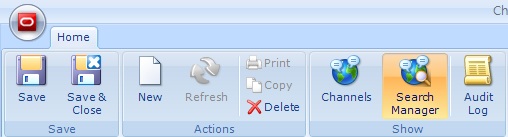
Note: Once the channel is saved and has been used to perform cloud searches, the Search Manager button on the Channels editor ribbon will become active. This function provides access to a utility for managing cloud searches by channel.

cm3

Cloud Monitor: Facebook Channels

Cloud Monitor allows your company to monitor and participate in conversations on the Social Networks, interacting with the customers through Facebook, Twitter and listening on YouTube, Blogs or other RSS Feeds. From the searches in the Cloud Monitor agents can create incidents to pro-actively communicate with customers and follow up customers’s issues and also identify trends or experiences.

Social Channels have to be set up in order for RightNow to be able to search the Social Networks for posts and comments related to your organization and its products/services. These channels include Facebook, Twitter, YouTube, and RSS feeds.

Facebook
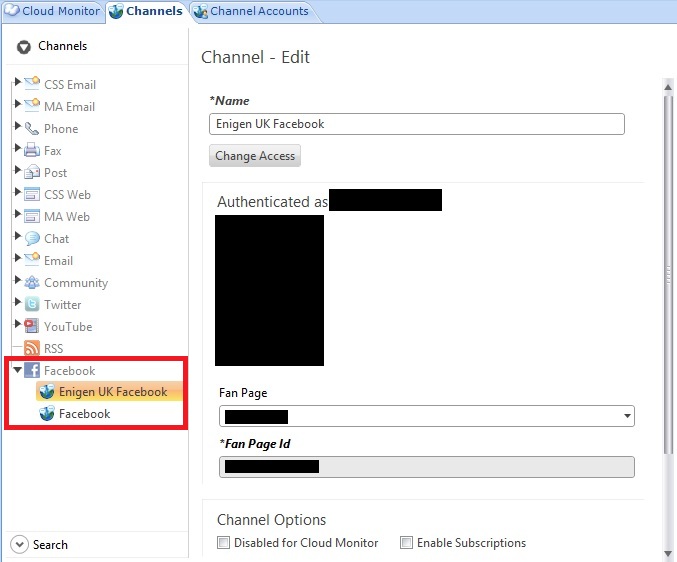
RightNow CX provides a default Facebook channel that you can access through the social monitor to perform searches of Facebook’s public feed. In addition, you can add custom channels to focus your searches to specific Facebook pages. By adding a custom Facebook channel, you can perform cloud searches that are confined to the posts on your organization’s
Facebook page.

To add a custom Facebook channel:
1. Click the Configuration button on the navigation pane.
2. Double-click Channels under Service in the configuration list. The Channels tree displays.
3. Click Facebook and then click the New button on the ribbon to display the editor.
4. Type a name for the custom channel in the Name field.
5. Click the Grant Access button. The Facebook Login window displays.
6. Type the email address and password for the Facebook account associated with the page.
7. Click the Log In button to sync the account with the channel you are creating.
8. Enter the necessary field information (Fan Page, Fan Page Id, etc).

cm1

Note: Once the channel is saved and has been used to perform cloud searches, the Search Manager button on the Channels editor ribbon will become active. This function provides access to a utility for managing cloud searches by channel

cm3

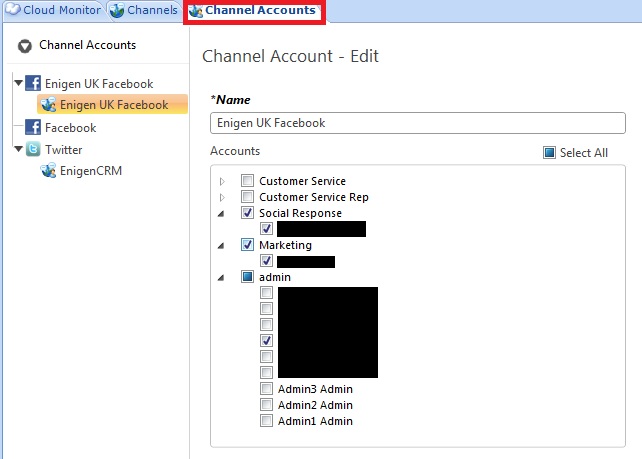
If you want your staff to be able to interact with customers on Facebook, you can also define a channel account to permit specific staff members to monitor your Facebook pages and send responses (Note: when agents reply to Facebook posts, their replies appear to come from the fan page and not from individual persona).

To provide staff access to a Facebook channel account:
1. Click the Configuration button on the navigation pane.
2. Double-click Channel Accounts under Service. The Channel Accounts tree display.
3. Click the arrow next to a Facebook custom channel to expand it and then click its contained channel account to display it on the editor.
4. Type a name for the Facebook channel account in the Name field
5. Select a group check box to associate all staff members in the group with the channel account or expand the group to select staff members individually.

cm2

Feedback: Create Surveys

Once you have defined the questions you want to ask, you can easily present them to your audience in surveys. RightNow Feedback contains flexible tools for creating custom surveys in a variety of formats. Surveys can be:

  • Sent as mailings
  • Served as web pages
  • Sent as events triggered by a campaign or business rule.

With a wide range of formatting and customization options and full analytics integration for tracking results, surveys provide you with a powerful channel for inviting, gathering, and analysing customer feedback.

You can create four types of surveys, distinguished by invitation method:

  • Broadcast surveys are used to send broadcast invitations to specified audiences at a time you choose.
  • Transactional surveys send invitations triggered by events that you define, such as an incident resolution or a campaign action.
  • Website link surveys rely on separate invitation delivery mechanisms, such as a link to the survey placed on a web page.
  • Polling surveys display as a single question on a customer portal page or any page that is external to the customer portal, such as a “Poll of the Day”. After customers submit their response, they see a poll results chart or a thank-you message.

Although available features vary by invitation method, every survey is presented through a web page and can be linked to from outside of RightNow CX. With the exception of polling surveys, surveys can be added to workspaces, letting your agents complete surveys by proxy (on behalf of contacts) during telephone interactions.

To create a survey

1. Click the Surveys button on the navigation pane and double-click Surveys Explorer.

2. Click the New button on the ribbon. A new survey opens on the content pane.

imga

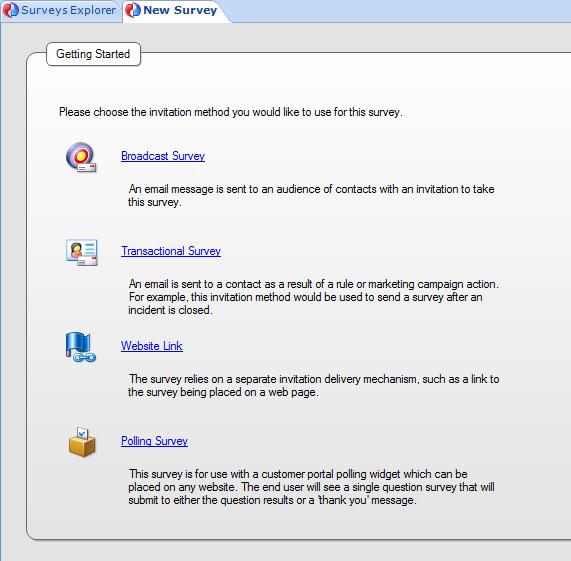
3. Choose the type of survey (in this case we will select Broadcast Survey).

imgb

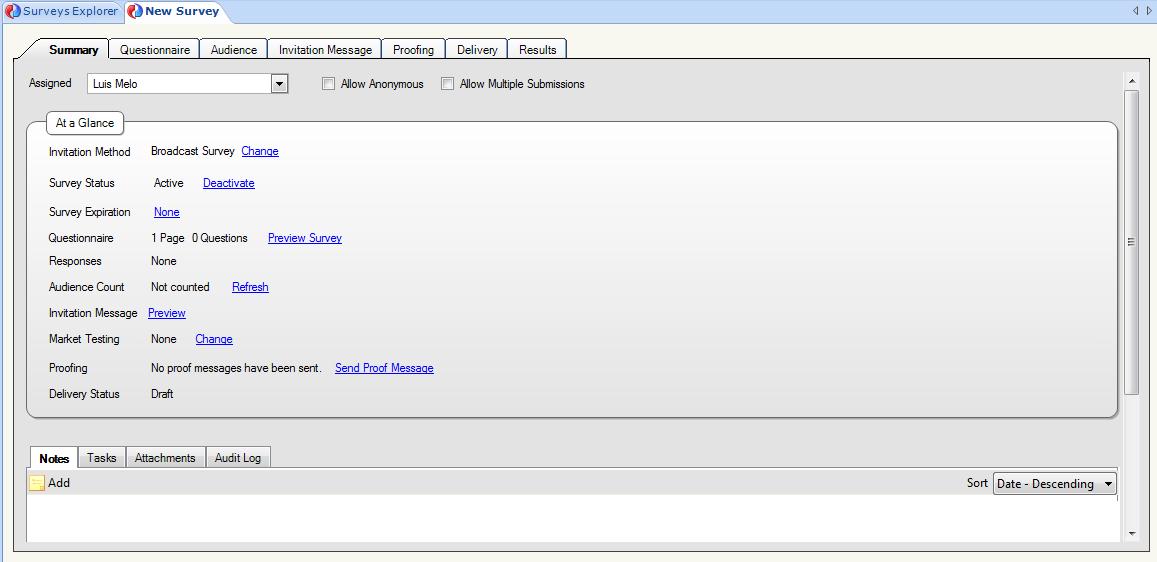
4. To let customers answer the survey anonymously, select the Allow Anonymous check box.

5. To let customers submit the survey more than once, select the Allow Multiple Submissions check box.

6. Use the At a Glance section to perform common survey functions

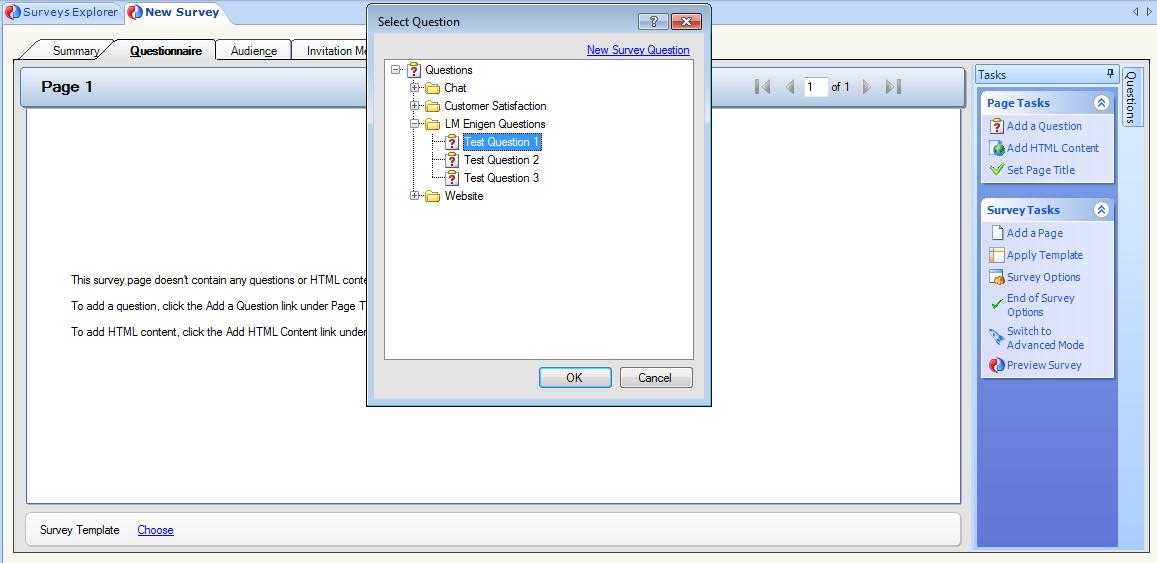
7. Click the Questionnaire tab to add questions and HTML content to the survey.

imgc

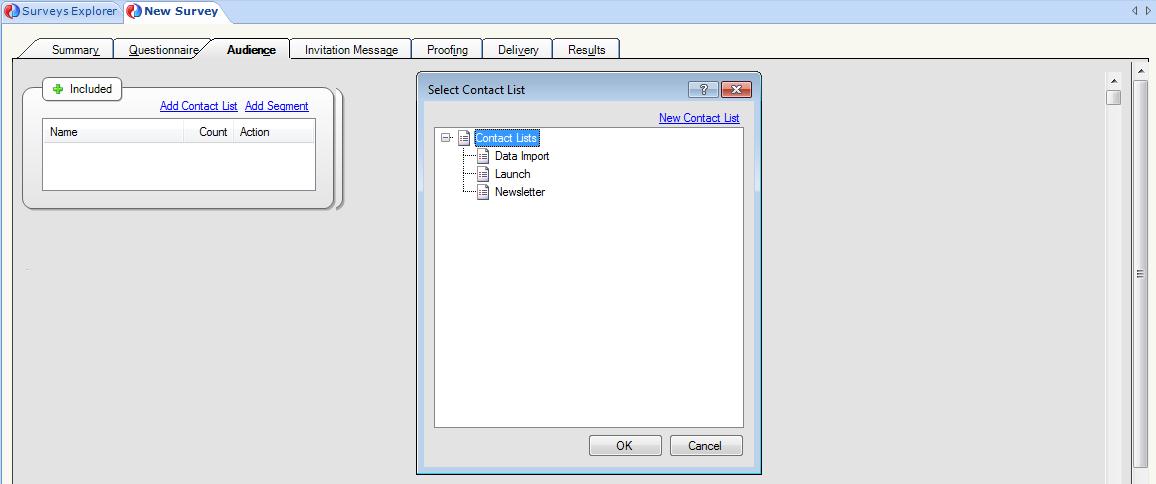
8. Click the Audience tab to define an audience for the survey

imgd

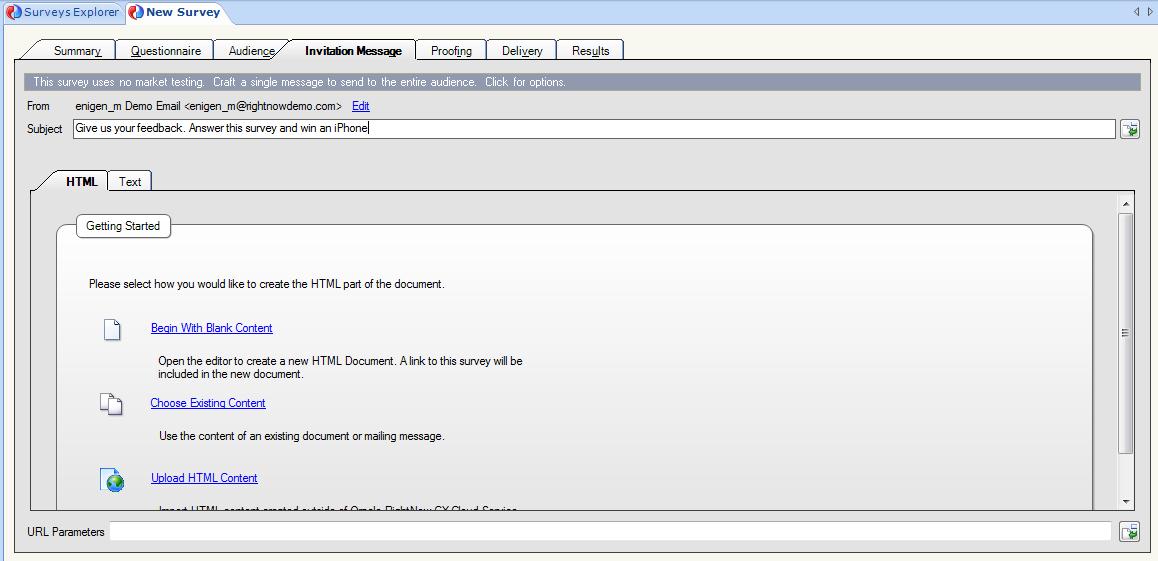
9. Click the Invitation Message tab to create the message sent to the survey audience

imge

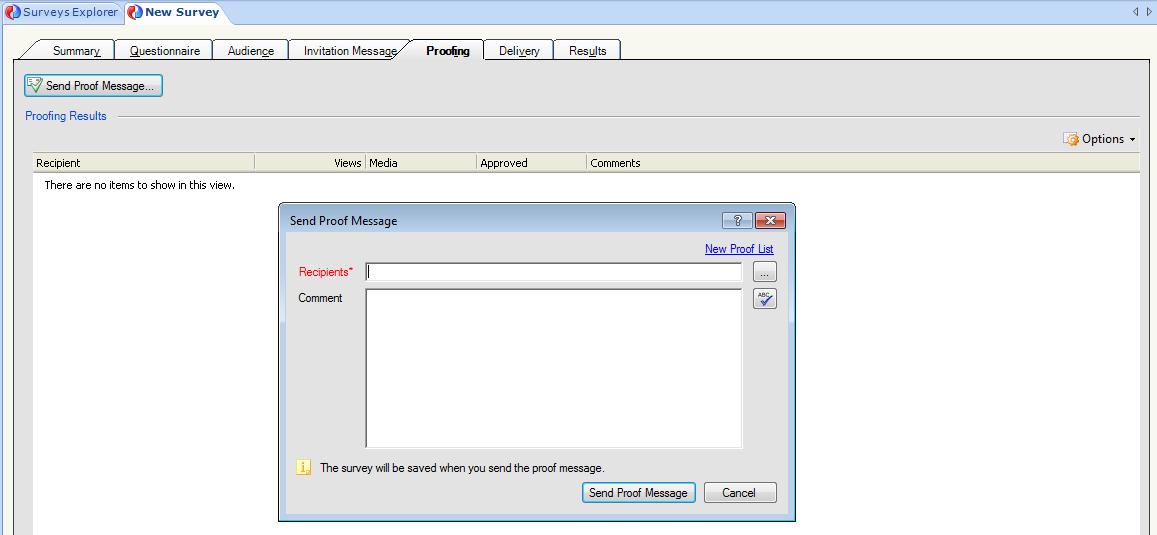
10. Click the Proofing tab to send a proof of the email for internal review before sending it to the entire audience

imgf

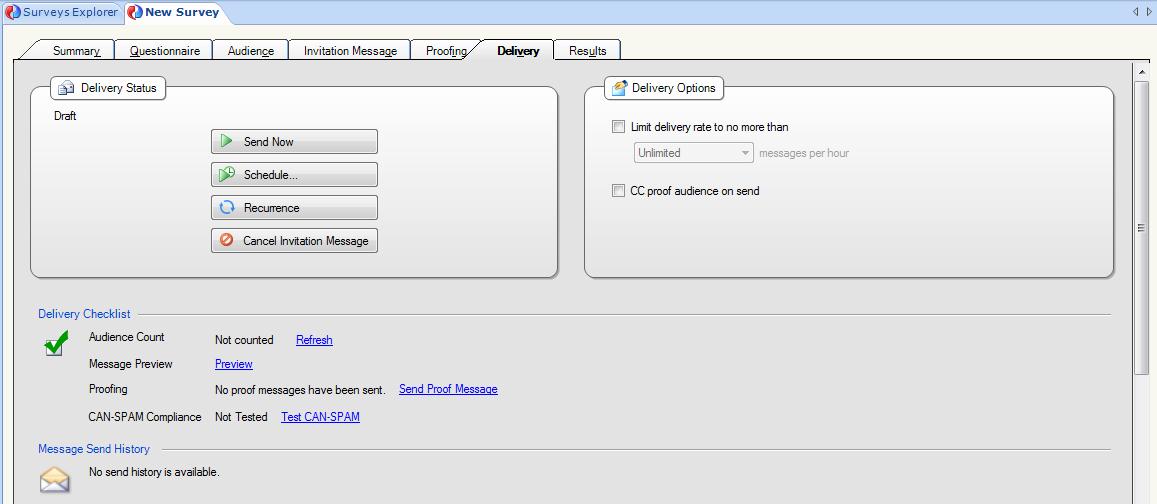
11. Click the Delivery tab to select delivery options

imgg

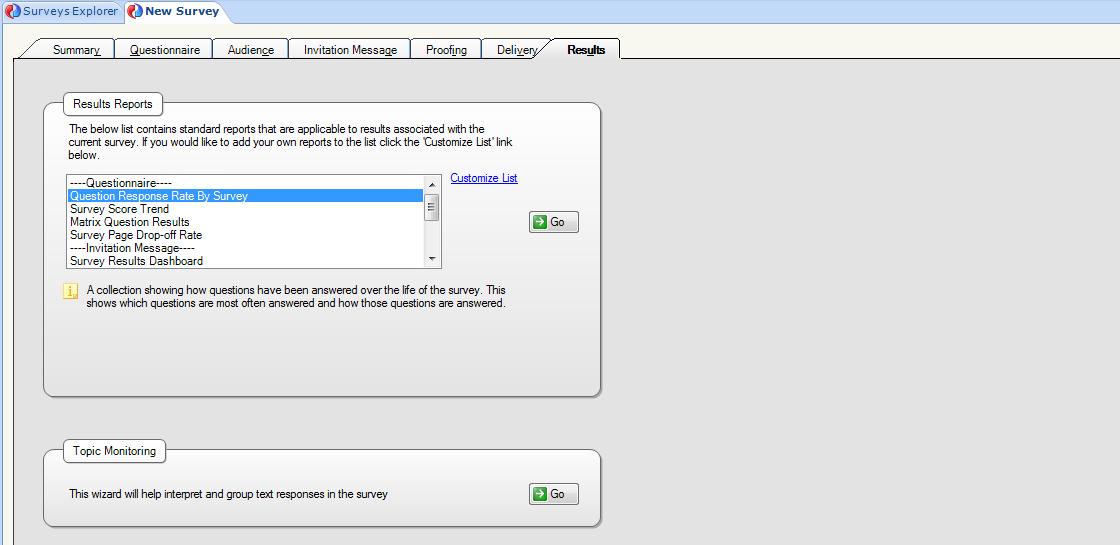
12. Click the Results tab to view the report associated with the survey

imgh

13. To preview the survey, click the Preview Survey button on the ribbon. The survey preview opens in a web browser

RightNow Feedback: Feedback Questions

In order to create surveys in RightNow Feedback, you must first create the questions that your respondents will answer. You can choose different question types to gather responses of different qualities, and you can customize display characteristics of each question.

For example, you can provide space for your respondents to enter their answers in their own words, returning data that is often specific and insightful. Alternately, you can offer respondents a choice of prewritten answers to a question, which provides you with a consistent, easily interpreted data set. You can also score choice questions and use RightNow Analytics to evaluate responses as numerical values.

When you create a survey question, you define the question name, type, and text that respondents see on the survey. You can also assign a score to each question choice. When creating questions, you can choose from three question types.

  • Text questions – Text questions let respondents type their answer to the question. You can create text questions when you want your respondents to be able to answer in their own words without having to choose from predefined options (e.g. “Do you have any suggestions?”). When you create a text question, you define only the question and the available space the respondent has to answer.
  • Choice questions – Creating choice questions lets you define the available responses for the question, allowing respondents to choose their answer from a menu, radio button, check box, or list. Choice questions may be scored and evaluated in Analytics.
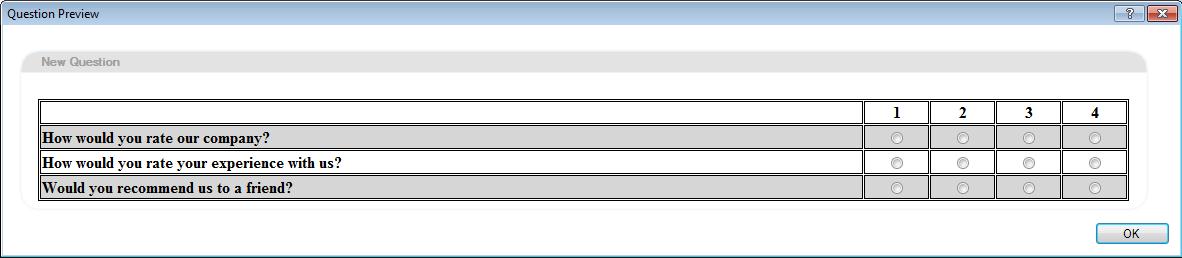
  • Matrix questions – In cases where a series of questions can be responded to with the same set of answer choices, matrix questions can help streamline a survey’s appearance by grouping the questions together in a table. Answer choices are displayed using either radio buttons (to permit only one answer to each question) or check boxes (to allow more than one answer). If you choose radio buttons, you can restrict selections to one choice per row, forcing respondents to rank their answers.

To create a question:

1. Click the Surveys navigation button and then double-click the Questions Explorer on the navigation list.

2. From the Questions Explorer, click the New button. A new question opens on the content pane.

img1

3. Type the text of the question in the Question Text field. This will be the question you want the respondent to answer.

4. Select the Question Type on the drop-down menu.

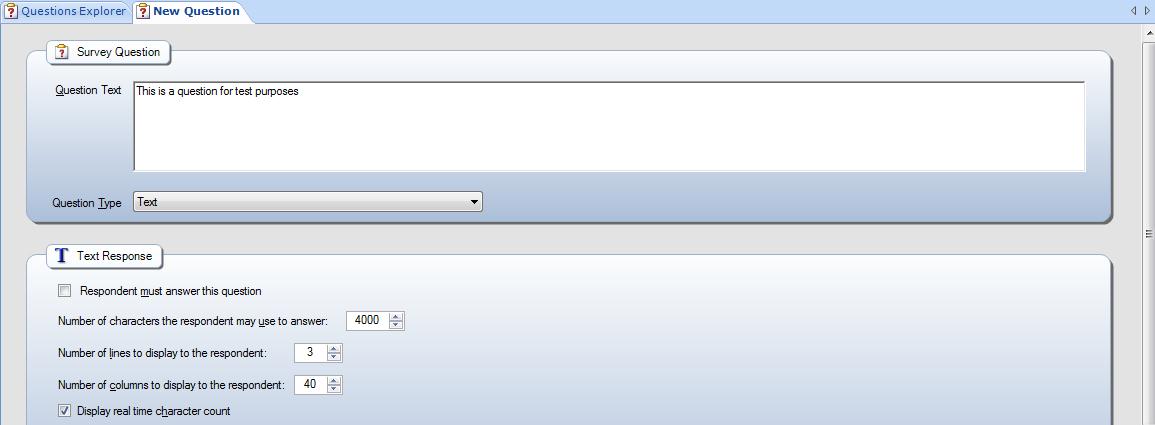
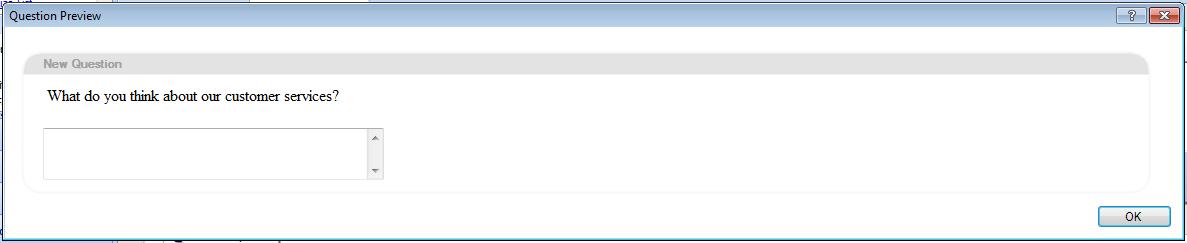
4.1. If “Text“ question type is selected you can make the question required or not, and control the number of characters the customer can use to respond, the number of lines displayed in the answer field, the width of the answer field or if there will be a real time character count displayed.

img2

img3

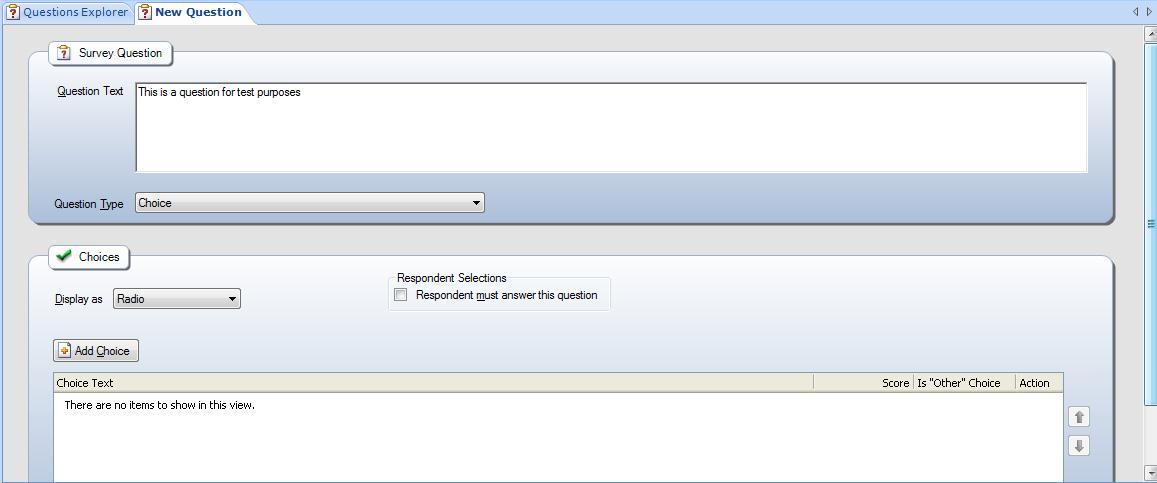
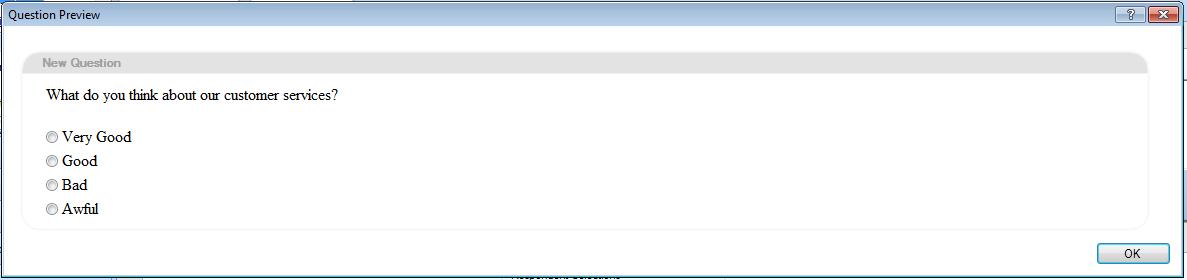
4.2. If “Choice“ question type is selected you can define how the choices are going to be displayed (Radio, Check box, Menu, List), the Respondent Selections (Required, number of choices, etc.), and add the choices. It is also possible to give score to the each choice in order to use analytics afterwards.

img4

img5

4.3. If “Matrix“ question type is selected you can define how the choices are going to be displayed (Radio, Checkbox), the Respondent Row Selections (Required, number of choices, etc.), add the questions and choices. It is also possible to give score to the each choice in order to use analytics afterwards.

img6

img7

Business Rules: Elements of rules and rule bases

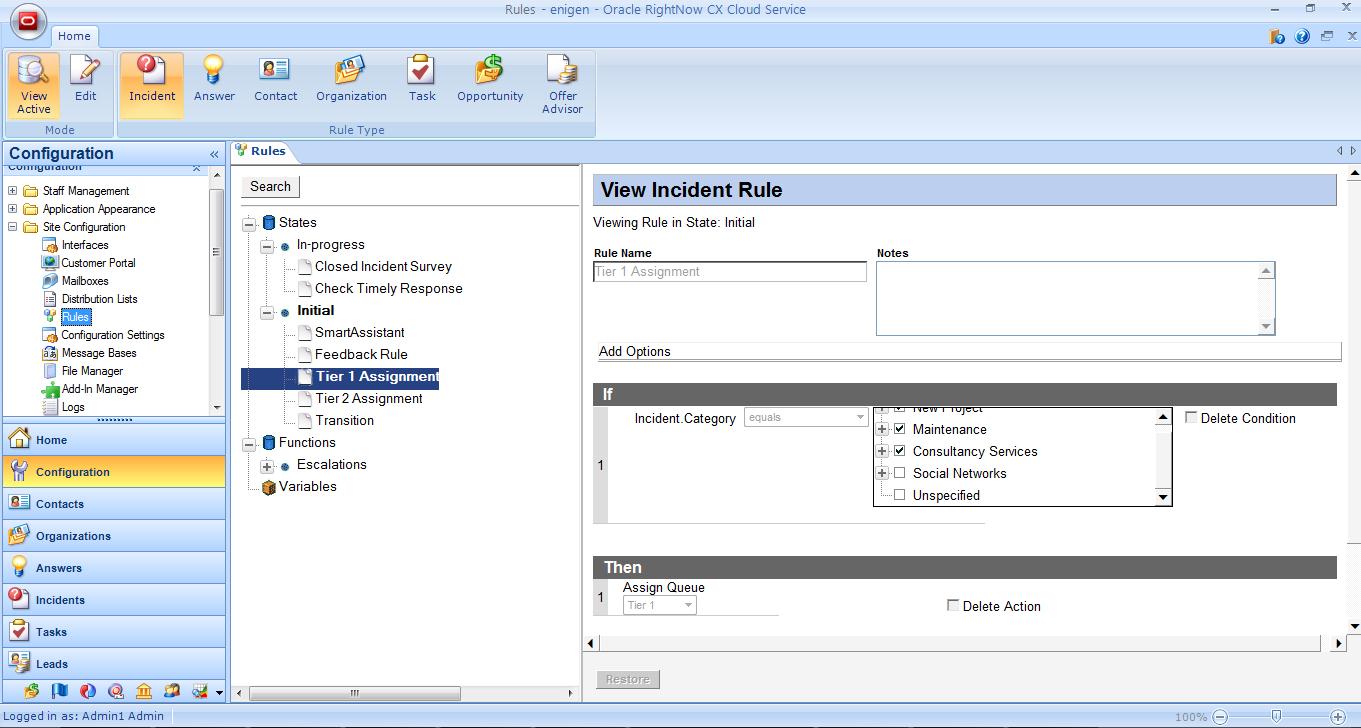
Before you create a rule base, you should be familiar with the elements of rules and rule bases and how these elements are related. The left side of the content pane displays the rules in each of the rule base’s states and functions as well as a list of the rule base’s variables. The right side of the content pane is the editor, which lets you add and edit states, functions, and variables for a rule base. This is also where you add and edit conditions and actions for individual rules.

br

States and Functions

States and Functions provide a way for you to organize business rules and define the sequence for processing rules. Each rule base must have at least one state (the initial state) before rules processing can begin.

The states and functions are listed alphabetically in the Rules tree, and the rules within each state and function are listed in the order in which you want them to execute. You can add as many states as you need for each stage of your business. You can set up rules in the initial state. Then, depending on the conditions of rules in the initial state, you can transition the object into another state to continue processing the rules in that state.

Like states, functions are also containers for rules. Functions are useful for grouping sets of rules that you want to use in several places. You can set up many separate rules that call the same function, or set of rules, thereby reducing the number of individual rules you need. When a rule in one state calls a function, all the rules within that function process. After all the rules in the function process, the rules engine resumes processing in the original state with the next rule in that state.

The primary difference between states and functions is what happens when the rules engine processes the last rule. When the last rule in a state is processed, the rules engine stops processing (unless it encounters a stop processing rule before the last rule or it transitions to a function or another state). When the last rule in a function is processed, the rules engine returns to the next rule in the state from which the function was called.

While functions are powerful tools for grouping rules, avoiding duplication, and making maintenance easier, you are not required to use them in a rule base. You can still take advantage of the powerful features of business rules by adding as many states as you need based on the processes you want to automate and then creating rules within each state.

Variables

A variable is a piece of data with a value that can change during rules processing. You define what its default, or starting, value should be. Then, based on conditions you specify, the variable can be modified by rule actions. You can also use the value of a variable as a condition of a rule. The value of the variable is temporary, existing only during the particular rules processing session. When rules processing is started the next time, the variable’s value is reset to the default value.

Conditions

Remember that a rule is basically an “if-then” statement. If something meets this condition, then take this action. The “if” statement is the rule’s condition. Each rule base has a unique set of conditions that the rules engine can use to evaluate the object.

Logical expressions

When you add two or more conditions, rules processing uses a logical expression to define the relationship of the conditions. Logical expressions join conditions using an AND (&) or an OR (|) relationship between them.

Actions

Actions comprise the “then” part of an “if-then” rule or the “then” and “else” parts of an “if-then-else” rule. If the conditions you specified in a rule are met, then the rules engine implements the rule’s actions. The list of available actions depends on the rule’s object type. An action can be as simple as stopping the rules processing or more complex, such as assigning an incident to an agent, sending that agent a notification, and defining an escalation process if the incident is not resolved within a certain time frame.

Note: When you open a rule base and edit it, RightNow CX maintains the active rule base while you edit a copy in the Rules editor. Your changes are not saved until you activate them.

Business Rules: An overview

Business rules are powerful tools for simplifying and automating common business tasks. They link data from all RightNow CX products in the knowledge base, resulting in a responsive, consistent customer experience.

Business rules help you provide a consistent, accurate, and timely experience for customers while streamlining the efficiency of staff members. When the rules engine updates information automatically and immediately, your entire organization has access to a knowledge base that is accurate and current in every customer interaction.

When you create rules to answer routine customer questions, customers enjoy an immediate response. At the same time, staff members work more productively without the distraction of repetitive tasks. As a result, they can deliver more responsive customer service and follow-up

What is a business rule? A business rule is simply an “if-then” statement: If these conditions apply, then take this action. Business rules can also include an Else clause. If the conditions of the rule are not met, the Else clause specifies the action that should be taken.

How are rules organized? RightNow CX products have 8 rule types:

  • Contact
  • Organization
  • Task
  • Incident
  • Answer
  • Chat
  • Offer Advisor
  • Opportunity

Each of these sets of rules is a rule base. The entity to which a rule base applies (answer, incident, contact, chat, opportunity, organization, target, task) is known as the object type.

Every object type has its own rule base, and every rule base is separate from other rule bases. The contacts rule base processes only contacts, the organizations rule base processes only organizations, and so on.

How are rules processed? The rules engine is the software that processes the rules in a rule base. The rules engine begins processing when:

  • Staff members add or edit answers, contacts, incidents, opportunities, organizations, or tasks
  • Customers submit questions on the Ask a Question page
  • Customers update their contact records or incidents
  • Customers request chat sessions

The rules engine looks at every new or updated object and checks to see if the conditions of any rules are met. If a rule’s conditions are met, the action associated with that rule occurs.

Important: The rules engine is triggered when the contact (or other object) is updated, not when the rule base is updated. If you create or edit a rule, objects are not evaluated to see if they meet the conditions of the new or updated rule. Rules processing happens only when objects are added or updated.

Planning business rules: Before you begin creating rules for your organization, it is important to examine your business processes. Once you have a clear idea of the processes your organization uses, you can develop an effective method for applying business rules to automate these processes. Here are some essential steps to help you get started.

  • Identify and outline business processes
  • Develop a rules flowchart
  • Review functionality of rules
  • Create rules
  • Prioritize processes for applying rules
  • Verify and fine-tune rules

Customer Portal: Proactive Chat triggers and definitions

Triggering chat offers on time

The default setting of 0 for the seconds attribute does not mean chats are offered immediately (after 0 seconds). Instead, it means chats will never be offered based on the amount of time customers spend on a page.

However, you might decide that the amount of time spent on a page is a valid trigger for offering a chat. If you want to offer customers a chat session if, for example, they have been on a page for 60 seconds without any activity, you can set the seconds attribute to trigger a chat at that time.

To trigger chat offers based on page time, add the seconds attribute to the code so it resembles the following.

<rn:widget path=”chat/ProactiveChat2″ seconds=”60″ />

Triggering chat offers on number of searches

The default setting of 0 for the searches attribute means that chats will never be offered based on the number of searches conducted by customers. You might decide to use number of searches as a trigger for offering a chat. If customers have conducted several searches without finding what they’re looking for, an invitation to chat might be useful.

To trigger chat offers based on number of searches, add the searches attribute to the code so it resembles the following.

<rn:widget path=”chat/ProactiveChat2″ searches=”3″ />

Triggering chat offers on profile attributes

The default null values for the profile_ attribute means that chats will never be offered based on customer profile information, but you might decide to set those values because you want to offer chats based on customer profile information.

When you configure the ProactiveChat2 widget to offer a chat based on customer profile information, you must define all three profile attributes for the widget: the profile item, the operator, and the value.

Let’s assume you want to offer a chat to all customers from ABC International, which has an organization ID of 81945. In that case, the widget code would resemble the following.

<rn:widget path=”chat/ProactiveChat2″ profile_item=”org_id” profile_operator=”equals” profile_value=”81945″ />

Triggering chat offers based on customer SLAs

If your organization requires SLAs in order for customers to chat with agents, you’ll want to verify that the customer has an SLA with available chat incidents before a chat session is offered. The profile attributes of the ProactiveChat2 widget can do that for you.

An SLA defines the total number of incidents a customer can submit, as well as specific numbers of chat, staff member, email, and web self-service incidents.

To check for chat SLAs prior to offering a chat, add the profile_item, profile_operator, and profile_value attributes to the code for the ProactiveChat2 widget. You will want to set the slac item to be greater than zero to be sure the customer has remaining chat incidents available on their SLA. You will probably also still want to include the seconds or searches attributes so the chat invitation is not immediately offered when the customer lands on the page with the widget. Your edited code will resemble the following.

<rn:widget path=”chat/ProactiveChat2″ seconds=”30″ profile_item=”slac” profile_operator=”greater than” profile_value=”0″ />

Editing the chat invitation

By default, the chat invitation says “A Chat Assistant is available to help. Would you like to start the session?” That message can be edited by editing an attribute of the ProactiveChat2 widget.

To edit the chat invitation, add the label_chat_question attribute to the code so that it resembles the following.

<rn:widget path=”chat/ProactiveChat2″ seconds=”30″ label_chat_question=”Staff members are available now. Would you like to chat with someone?” />

Changing the chat login page

When customers click Yes to accept the chat offered by the ProactiveChat2 widget, the Live Help page opens by default. You might want to direct customers to a different page instead.

To change the chat login page, add the chat_login_page attribute to the widget code so it resembles the following. Note that the path to the page must begin with /app/.

<rn:widget path=”chat/ProactiveChat2″ seconds=”30″ chat_login_page=”/app/chat/alternate_chat_launch_page” />

Defining how the chat login page opens

By default, the chat login page opens in a new window that lets you configure its height and width. You can also set the chat login page to open in the same window.

To change the size of the chat login window, add the chat_login_page_height and chat_login_page_width attributes to the widget code, defining the new values for height and width. Your code will resemble the following.

<rn:widget path=”chat/ProactiveChat2″ seconds=”30″ chat_login_page_height=”500″ chat_login_page_width=”600″ />

To open the chat login page in the same window, add the open_in_new_window attribute and set it to false so your code resembles the following.

<rn:widget path=”chat/ProactiveChat2″ seconds=”30″ open_in_new_window=”false” />

Determining product or category

By default, the ProactiveChat2 widget tries to determine the product or category by evaluating search information or product/category information from an answer or incident page. It “guesses” to the deepest level that can be found and then, if product/category information is available, that information is sent to the server to determine what queue the chat request should be routed to, whether agents are available for that queue, and what the estimated wait time is. You can disable this feature for either product, category, or both.

To disable product or category determination:

  • To prevent trying to determine what product should be used to route the chat session to a specific chat queue, set the guess_prod_val attribute to false. Your code will resemble the following.

<rn:widget path=”chat/ProactiveChat2″ seconds=”30″ guess_prod_val=”false” />

  • To prevent trying to determine what category should be used to route the chat session to a specific chat queue, set the guess_cat_val attribute to false. Your code will resemble the following.

<rn:widget path=”chat/ProactiveChat2″ seconds=”30″ guess_cat_val=”false” />

Defining the minimum number of agents

If the seconds, searches, or profile attributes of the chat widget have been met, an AJAX request is made to the server, which sends back the number of available agents. If you have defined the minimum number of agents required to offer a chat session that value will be compared to the number returned from the chat server. If the number of available agents is greater than or equal to the number you defined in the min_agents_avail attribute, the chat is offered to the customer.

To define the minimum number of agents, add the min_agents_avail attribute to the widget code so it resembles the following.

<rn:widget path=”chat/ProactiveChat2″ seconds=”30″ min_avail_agents=”2″ />

Defining the maximum wait time

If the seconds, searches, or profile attributes of the chat widget have been met, an AJAX request is made to the server, which sends back the wait time for a chat session. If you have defined the maximum time the customer will have to wait in a queue, that value will be compared to the number returned from the chat server. If the wait time is less than the value you defined for the wait_threshold attribute, the chat is offered to the customer.

To define the maximum wait time, add the wait_threshold attribute to the widget code so it resembles the following. Note that the wait time value is measured in seconds.

<rn:widget path=”chat/ProactiveChat2″ seconds=”30″ wait_threshold=”60″ />

Note: It is recommended that you set min_agents_avail to 0 when you set the maximum wait time.

Triggering a chat offer by an event

If you want to trigger chat offers only when a specific event occurs, you must first create an event called evt_customProactiveInitialization using custom code. Then set the initiate_by_event attribute of the ProactiveChat2 widget to true. This tells the widget’s logic file to listen for the event before triggering a chat offer.

Note: For specific information about defining evt_customProactiveInitialization, refer to the initiate_by_event attribute definition on the Customer Portal Administration site at http://<your_site>/ci/tags/widgets/standard/chat/ProactiveChat2.
Customer Portal: Proactive Chat

You can offer your customers an invitation to a chat session if they have conducted searches without finding the results they are looking for. You can do this on your customer portal pages, and you can also offer a chat session from any external page on your website.

The following summary of events occurs when a customer accepts a chat offer through the ProactiveChat2 widget or the syndicated ProactiveChat widget.

  • Before the chat is offered to the customer, the chat session routing rules determine what queue the chat request will be directed to based on products, categories, custom fields, and other rule conditions.
  • When the customer accepts the chat request, the chat page that opens contains by default any incident custom fields that have chat visibility. If you have edited the page to add the ability to select products or categories, they will also appear.
  • If the customer changes any of the information on the chat page, that information is passed to the agent on the chat session workspace. However, the rules engine does not run again. As a result, the customer may change a field that would have triggered the chat being assigned to a different queue, but because rules are not run on the updated chat page, the original queue assignment does not change.

Chat sessions are not offered in the following situations:

  • If the customer’s browser does not accept cookies, no chat is offered during the customer session.
  • If the widget looks for a chat queue ten times without finding one, no chat is offered on that page.
  • If a chat is offered (whether or not it is accepted), a cookie is set and no more chat offers are made during the current customer session.
  • If a chat is offered and the customer refuses, a cookie is set and no more chat offers are made for 30 days.

Offering a chat on customer portal pages

You can put the ProactiveChat2 widget on any page. RightNow Chat must be enabled and agents must be available before a chat will be offered to a customer. Additionally, the customer’s browser must be configured to accept cookies.

Important: The default code for the ProactiveChat2 widget will not trigger a chat offer until you add an attribute that defines the trigger for the offer. Therefore, you must add at least one of the following attributes to the code: seconds, searches, or profile attributes. If you do not specify one of these, the widget will not offer a chat session. Alternatively, you can define an event that will trigger a chat offer by creating a custom widget based on the ProactiveChat2 widget.

To add the ProactiveChat2 widget to the Answers page

1. Open the list.php file in the /views/pages/answers folder

2. Locate the following code.

<rn:widget path=”reports/Paginator” />

3. Add the following code immediately after the code you found in step 2.

<rn:widget path=”chat/ProactiveChat2″ />

4. To trigger the chat offer based on the customer’s inactive time on the page, add the seconds attribute to the code, which will resemble the following.

<rn:widget path=”chat/ProactiveChat2″ seconds=”60″ />

5. To trigger the chat offer based on the number of searches the customer conducted, add the searches attribute to the code.

<rn:widget path=”chat/ProactiveChat2″ searches=”3″ />

6. To trigger the chat offer based on the customer’s profile information, including organization, SLAs, and default product and category, refer to the section “Triggering chat offers on profile attributes” on this post.

7. To trigger the chat offer based on an event, refer to the section “Triggering a chat offer by an event” on this post.

8. Save list.php.

Configuring the ProactiveChat2 widget attributes

The default code for the ProactiveChat2 widget will not trigger a chat offer because the default values for the seconds, searches, and profile_ attributes are 0. You must define at least one of these attributes before the chat offer will be triggered.

When one of these attributes has been met, an AJAX request is made to the server, which then sends back the number of available agents and the minimum wait time. If a product or category can be determined through search terms or answers or incidents viewed, the queue ID for that product or category is also returned. This information is then matched against any additional widget attributes.

You can configure any of the following ProactiveChat2 widget attributes

– Chat triggers

  • Number of seconds on page
  • Number of searches conducted
  • Profile attributes (profile_item, profile_operator, and profile_value)

– Display and function

  • The wording of the chat invitation
  • The chat login page that opens when customers accept
  • Whether the chat login page opens in a new window or the same one
  • Attempt to guess product or category

– Chat availability

  • The minimum number of available agents
  • Maximum wait time in queue