Email Management: Service Process

The Email Management feature in RightNow CX gives complete control over the handling of inbound and outbound email messages, whether they are related to Service (incidents or staff notifications), Outreach (surveys) or Marketing (mailings) matters.

When it comes to Service, RightNow CX handles email communication between customers and the customer service team in a very flexible way. RightNow CX evaluates each incoming email to ensure it meets the criteria for service, and then manages all back and forth email replies between the agent and contact until the incident is resolved. Along the way, RightNow CX can automate key service email messages that will help the customer service team to deliver timely, world-class service.

When a customer emails a question to the customer service email account, RightNow Service handles it using the following process:

1. A contact record is associated: The Techmail (*) utility first searches all contact records for the email address in the Reply To field of the message’s mail header. If no match is found, Techmail looks for the address in the mail header’s From field. If a match is found, the contact record is associated with the incoming request. If the customer’s email address is not found in an existing contact record, a new contact record is created for the customer.

2. Contact validity is verified: Once the email management system identifies a matching contact record, customer information is evaluated to determine whether it meets your organization’s requirements for service. If SLA’s are required, the system checks to ensure the customer has a valid SLA before creating an incident. If the customer does not have a valid SLA, an auto-response denying assistance is generated and sent to the customer.

3. An incident is created: Once a contact record is matched and any SLA requirements are met, Techmail creates an incident using the contents of the email message. If the message is multipart (containing both HTML and text versions), the text version of the message is added to the incident thread and the HTML version is discarded. If the message contains HTML only, it is converted to text and added to the thread.

4. The incident is processed by business rules: Upon incident creation, RightNow CX sends the contact an auto-generated receipt for the question. However, business rules are often configured to perform additional functions such as assigning an SLA, sending an auto-response, and assigning the incident to an agent for a response. Rules can also be configured to escalate the incident if the assigned agent does not answer the customer’s question within a specified time period.

5. The agent responds: When an agent responds to the contact’s question, an email is sent to the contact containing the agent response. Occasionally, a contact may reply with additional questions or information for the agent. Techmail identifies the reply message by looking for specific markers (such as the contact email address, the reference number in the subject line, and the message tracking string in the mail header) and applies the update to the incident, extending the conversation until resolved.

* Techmail: A scheduled utility that retrieves mail from specified POP3 mailboxes. RightNow Service processes some of the mail into new incidents and routes the incidents using business rules (depending on settings). RightNow Marketing and RightNow Feedback process bounced messages to assist in tracking incorrect email addresses.
Email Management: Service email reply processing

With RightNow CX customers have the ability to update incidents by replying to email messages. The management of this process is sometimes tricky as customers include the original message in their reply, quoting the email they received from RightNow CX.

When the Techmail (*) detects an email reply, it attempts to identify the part of the message containing the customer’s reply, and strips out any text that may have been quoted back from the original message thread. In this way, new replies are added to the incident as a new entry in the incident thread, while text from previous thread entries is ignored.

Techmail uses several methods to determine which blocks of text in a message consist of previous thread entries:

  • Most email clients mark or “block quote” the original message when replying. In text messages, the original text is often block quoted by inserting a greater than symbol (>) or a vertical bar (|) at the beginning of each line of the original text. In HTML messages, the original message is usually enclosed in block quote HTML tags (<blockquote>). Parameters in the block quote HTML tag indicate how the message should be displayed (for example, each line begins with a vertical bar or an indent). The Techmail utility’s block-quoted reply detection method finds block-quoted text and removes it from the email, leaving only the reply from the customer.
  • If a customer replies to multiple points within the original email, inter mixing the reply with the original text, the message may contain multiple blocks of quoted text. In this case, the replies may refer to the original text above them, which may be important, so Techmail includes the entire email message in the incident.
  • If a customer replies within the original text, and the reply text begins with a block quote, such that the reply is indistinguishable from the original text, Techmail can determine that additional text has been added within the original text by comparing checksums in the reply to checksums in the original message. If the checksums differ, the entire email is added to the incident to ensure that no reply text is lost.
  • Techmail can also detect and remove “boilerplate” messaging while leaving the customer’s content intact. Boilerplate messaging is text that has been added to an email message by a mail client, such as a line of advertising text embedded by Hotmail. This helps to ensure that the thread is not diluted with advertising and contains only information pertinent to the discussion.

* Techmail: A scheduled utility that retrieves mail from specified POP3 mailboxes. RightNow Service processes some of the mail into new incidents and routes the incidents using business rules (depending on settings). RightNow Marketing and RightNow Feedback process bounced messages to assist in tracking incorrect email addresses.

Email Management: Mailboxes

There are two mailbox types in RightNow CX:

  • Service
  • Marketing

Service mailboxes are used only with the RightNow Service application, while Marketing mailboxes are used with either RightNow Marketing or RightNow Feedback.

Mailboxes are used to define outgoing email settings and to specify the email accounts to pull email messages from. You cannot send or receive email from an application until at least one mailbox is configured and enabled for your RightNow CX interface.

Service and Marketing mailboxes cannot be share in order to ensure accurate processing of replies, inbound messages, and bounces. Techmail (*) handles messages in the Service mailbox differently from how it handles them in the Marketing mailbox.

Mailboxes can be configured to handle only outgoing email, only incoming email, or both.

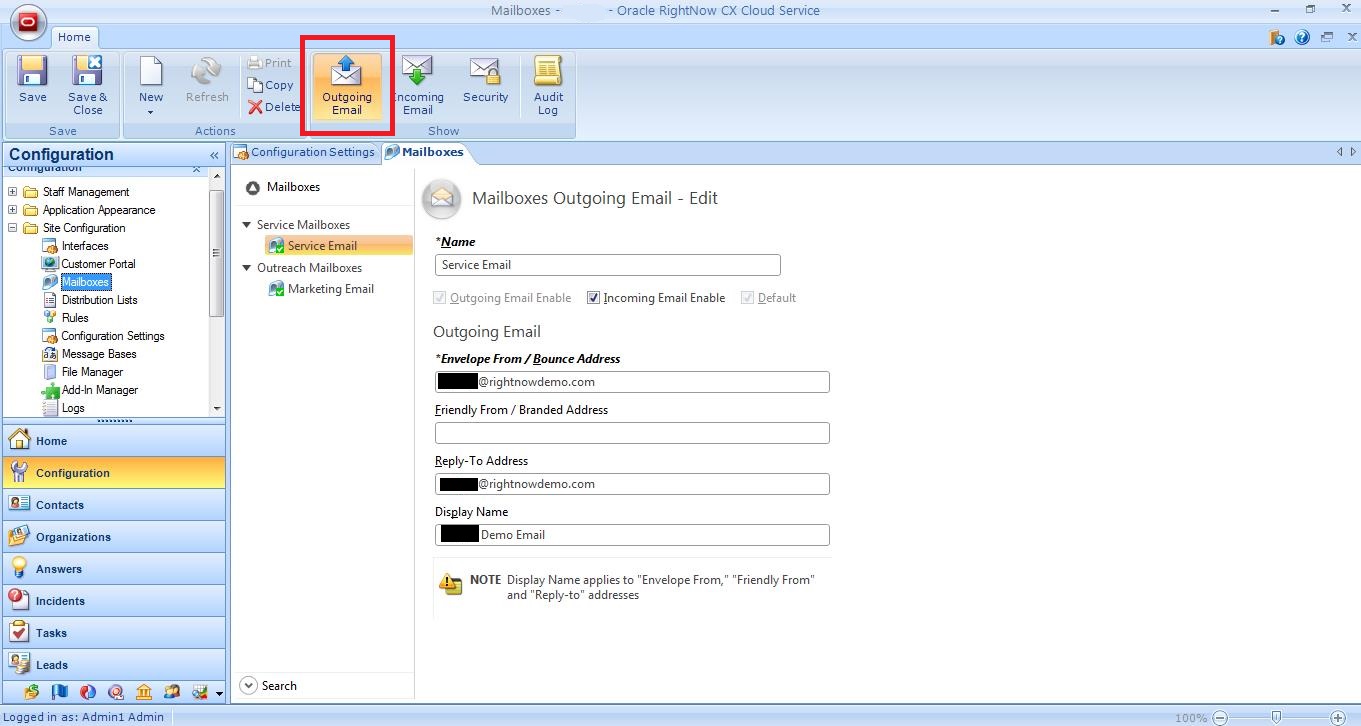
  • Outgoing email settings define the identifying information to be included in outgoing email sent by the mailbox, such as the Envelope From/Bounce Address, Friendly From/Branded Address, Reply-To Address, and Display Name.

em1

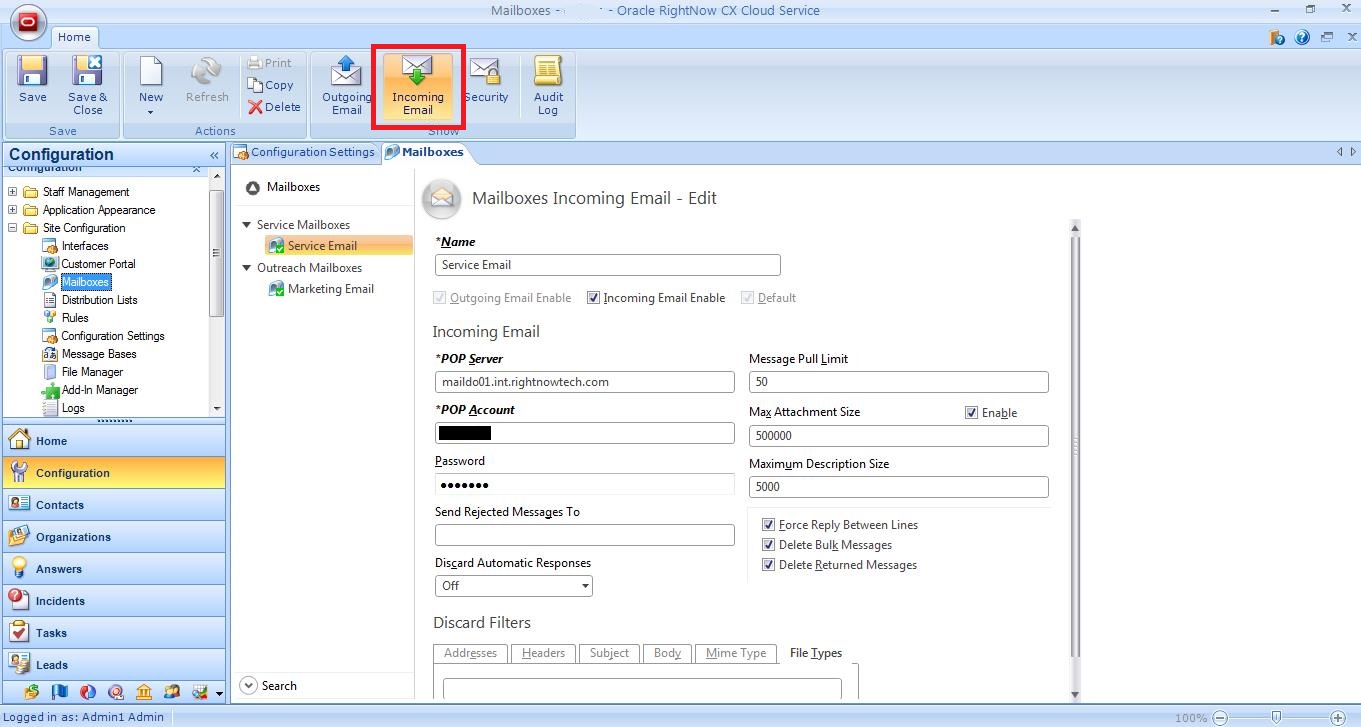
  • Incoming email settings define the POP server, POP account, and password used to access incoming email. Other incoming settings provide methods to filter mail messages (by applying discard filters and restricting file attachments by size and file type) and forward rejected messages to another email address.

em2

To safeguard your email communication, RightNow CX supports SSL and S/MIME security methods along with the ability to manage certificates and authentication options. Together, these features can provide a high level of security for messages traversing the Internet between you and your customers.

em3

* Techmail: A scheduled utility that retrieves mail from specified POP3 mailboxes. RightNow Service processes some of the mail into new incidents and routes the incidents using business rules (depending on settings). RightNow Marketing and RightNow Feedback process bounced messages to assist in tracking incorrect email addresses.

Google Maps for Organisations

A few weeks ago, in this post, I explained how to embed Google Maps on RightNow CX, in order to quickly see the Contacts’s address using the information in the RightNow database.

Some of you asked if this was possible to do with Organisations. The answer was: unfortunately it is not as straight forward as with Contact, and there is two reasons for that:

a) The Address field in Organisation – “Oaddr” – is different than that in the Contact. It is a collection of addresses that has two types: Billing and Shipping. These are controlled by objects “Organization Addresses” and “Organization Address Types”.

b) Address values in Organisation are not available to get directly. “Oaddr” is expressed as string XML data of the following form:

<Addr Street=”123 main st” City=”Bozeman” ProvId=”23″ PostalCode=”59718″ CountryId=”1″ />.

The suggestion to get this done was to use a Desktop Integration with RightNow Connect JavaScript API in 4 stages:

  1. Get and parse the Organisation address
  2. Retrieve the values (Street, City, Province, Postal Code, Country)
  3. Build a Google Maps URL with the values
  4. Navigate to Google Maps using “window.location”

The solution is then:

  • Step 1: Create an HTML file with the JavaSCript code to build the Google Maps URL

<html>
<head>
<script type=“text/javascript”>

function getAddress()
{
var selection=document.getElementById(‘address_type’).value;
//0 for billing addr and 1 for shipping addr
var address = window.external.Org.OAddresses;
var org=window.external.Org;
var provinceName;
var countryName;

//Parsing the XML into object
var xmlDoc = new ActiveXObject(“Microsoft.XMLDOM”);
xmlDoc.async = “false”;
xmlDoc.loadXML(address);

//Retrieving all the fields of selected Organisation Address
var desiredAddress=xmlDoc.getElementsByTagName(“OAddresses”)[0];

var street=desiredAddress.getElementsByTagName(“Addr”)[selection].getAttribute(“Street”);
var city=desiredAddress.getElementsByTagName(“Addr”)[selection].getAttribute(“City”);
var provId=desiredAddress.getElementsByTagName(“Addr”)[selection].getAttribute(“ProvId”);

var postalCode=desiredAddress.getElementsByTagName(“Addr”)[selection].getAttribute(“PostalCode”);
var countryId=desiredAddress.getElementsByTagName(“Addr”)[selection].getAttribute(“CountryId”);

//Fetching Province Name corresponding to provinceID retrieved
var provLabels = org.GetNameValues(“ProvId”);
xmlDoc.loadXML(provLabels);
var x=xmlDoc.getElementsByTagName(“Item”);
for (i = 0; i < x.length; i++)
{
var provAttlist=x.item(i).attributes;
var provAtt=provAttlist.getNamedItem(“Id”);
if (provAtt.value==provId)
{
provinceName= provAttlist.getNamedItem(“Name”).value;
}
}

//Fetching Country Name corresponding to countryId retrieved
var countryLabels = org.GetNameValues(“CountryId”);
xmlDoc.loadXML(countryLabels);
var y=xmlDoc.getElementsByTagName(“Item”);
for (i = 0; i < y.length; i++)
{
var countAttlist=y.item(i).attributes;
var countAtt=countAttlist.getNamedItem(“Id”);
if (countAtt.value==countryId)
{
countryName= countAttlist.getNamedItem(“Name”).value;
}
}

//Building the google maps URL
var finalAddress=street+” “+city+” “+postalCode+” “+ provinceName+” “+countryName;
window.location=”http://maps.google.co.in/maps?hl=en&q=”+finalAddress;
}

function ondataupdated(obj)
{
getAddress();
}

</script>
</head>
<body onload=getAddress()>
</body>
</html>

  • Step 2: Upload the HTML file to a server via FTP (I normally use FileZilla).
  • Step 3: Add a new tab to the Organisations Workspace and drag and drop a browser control into the tab

rn1

  • Step 5: Select the browser control, go to the Design tab > Options section, and put the URL path of the HTML file into the URL field.

rn2

  • Step 6: Select the browser control, go to the Design tab > Options section, and un-check the Delay Page Load check box.

rn3

Now, whenever you open an Organisation, and navigate to the “Map” tab, you will automatically see the Organisations’s address on the map.

Thank you to Bhagwan Singh Mer (Lead Consultant at Wipro Technologies) and Jens Lundell (Oracle RightNow Workflow Development Manager) for their help on this requirement. Special thank you to Saurabh Gupta (Consultant at Wipro Technologies) as it was him that scripted the JavaScript code.

RightNow Mobile Agent app

In the 2013 releases Oracle introduced the Mobile Agent app for RightNow CX – Oracle Tap Service and Support. A native iPad app that allows users to deal with the daily issues when they’re away form their desks.

A field agent can access critical information (e.g. contact location or phone), find incidents and update them while onsite. A specialist agent can find, reply and update incidents wherever or reassign them. A Manager can monitor every incident and have an overview of what’s going on.

The Mobile Agent app let’s users:

  • View, filter, search and update Incidents
  • View, filter and search Contacts
  • View, filter and search Organisations
  • View, filter and search Staff
  • Navigate between objects

And this can all be done offline and then synchronized.

As an image is worth a thousand words, I will leave you a video with a small demo:

Oracle Tap Service and Support from Hernan Capdevila on Vimeo.

Outlook Smart Tags for Incident Reference #

Besides synchronizing contacts, tasks, and email between Outlook and Oracle RightNow CX, you can also implement a Microsoft smart tag in Outlook to open incidents directly from an email.

Staff members who are using Outlook 2007 must enable smart tags through Tools > Options > Mail Format > Editor Options > Proofing > AutoCorrect Options > Smart Tags.

Outlook recognizes certain types of data in your email, such as an address, and lets you perform actions on that data. In addition, Oracle RightNow CX lets you install a smart tag that recognizes incident reference numbers contained in email messages. When you right-click the reference number in an email message, the incident automatically opens in RightNow CX.

To install RightNow CX SmartTag:

1. Close Outlook.

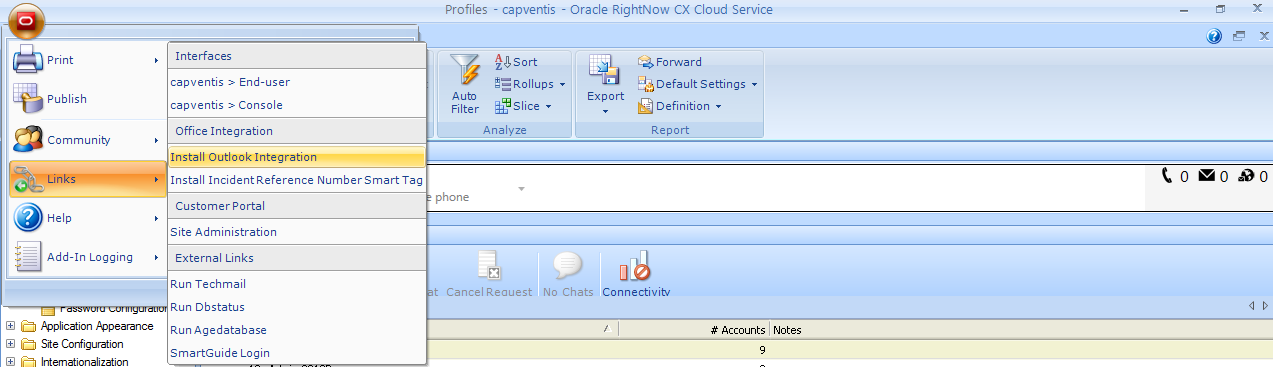
2. In RightNow CX, click the CX button and select Links > Install Incident Reference Number Smart Tag. The SmartTag Setup Wizard opens.

oi1a

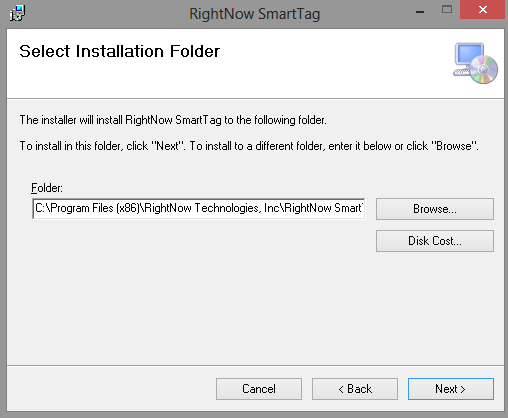
3. Click the Next button to open the Select Installation Folder window.

oist2

4. To install SmartTag in a different location, click the Browse button, select the folder where you want to install SmartTag, and click the OK button.

oist3

5. To see a list of the drives where SmartTag can be installed, click the Disk Cost button. Click the OK button when you are finished.

6. Click the Next button to open the Confirm Installation window.

oist4

7. Click the Next button to begin the installation. After the installation is complete, the Installation Complete window opens.

oist5

8. Click the Close button to complete the installation.

To open an incident using RightNow CX SmartTag in Outlook:

1. Hover over the incident number smart tag in the email message. The smart tag indicator appears.

2. Click the smart tag indicator and select Open Incident within CX Console.

Note: If you are using Outlook 2010, you must right-click the reference number and select Additional Actions to view smart tag options

If the CX Console is already open, the incident opens. If the CX Console is not open when you select Open Incident, you must log in to Oracle RightNow CX for the incident to open.

Important Note 1: After the RightNow up-grade IT faces huge issue with the installation of the new version of outlook integration: Outlook Integration MSI Data cannot be installed centrally and the IT needs to do it locally, on every User Stations. Therefore it takes some time before all users gain installed the Outlook Integration and meantime the Outlook sync is not available on user’s stations.

Important Note 2: Prevent users from creating contacts via Outlook Sync using profile permissions: Even though the profile only has Read permissions for Contacts using the outlook sync facility allows them to create contacts.

Configuring Outlook Integration

Microsoft Outlook can be integrated with Oracle RightNow CX Cloud Service, enabling you to share your contacts and tasks and synchronize your email. Using Outlook integration, your data will be more complete and up-to-date, and you’ll no longer need to switch back and forth between applications. You can also create contacts and incidents when syncing Outlook email with Oracle RightNow CX.

Outlook integration is comprised of the following components.

  • Contact synchronization: Enter contact information one time, in either Oracle RightNow CX or Outlook, and have that information shared in both applications.
  • Task synchronization: Enter task information one time in either application and have that information shared in both applications.
  • Email integration: Append Outlook email, including attachments, to existing contacts, organizations, opportunities, and incidents in Oracle RightNow CX.

The following actions must be taken to use Outlook integration.

  • Step 0: Enable Outlook integration on your site: Contact your Oracle account manager.
  • Step 1: Add or update profiles to include Outlook integration permission.
  • Step 2: Install Outlook integration software on agent workstations.

Step 1: Adding Outlook integration permissions to profiles

You can be assigned full Outlook integration permissions (contact and task synchronization, email integration) or any combination of the three permissions.

To add Outlook integration permissions to a profile:

1. Click the Configuration button on the navigation pane and double-click Profiles under Staff Management.

2. Open the profile you want to edit.

3. Click the Permissions button on the ribbon and then the Outlook Integration tab.

4. To allow staff members to append Outlook email to contacts, organizations, opportunities, and incidents in RightNow, select the Email Integration check box.

5. To allow staff members to share contacts between Outlook and RightNow, select one or more of the Contact Synchronization check boxes.

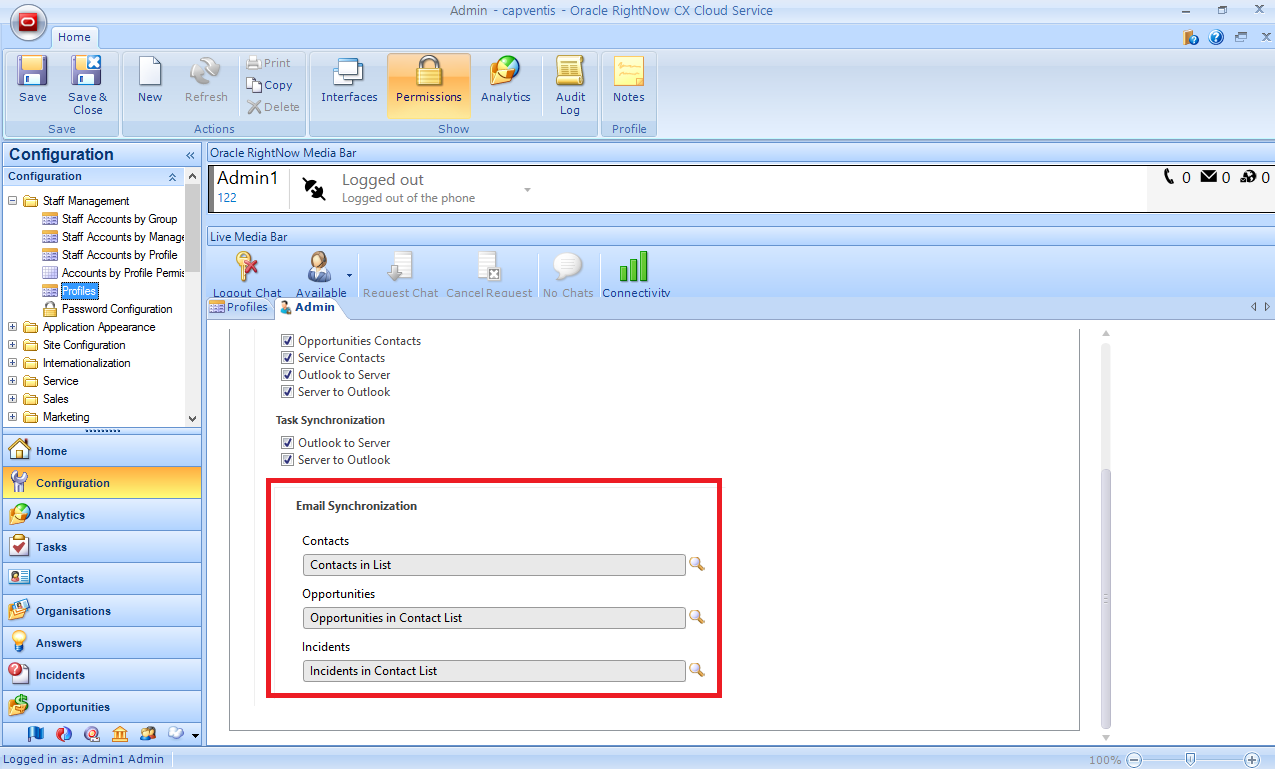
  • To share contacts that are in the Opportunities state, select the Opportunities Contacts check box.
  • To share contacts that are in the Service state, select the Service Contacts check box.
  • To share Outlook contacts with RightNow, select the Outlook to Server check box.
  • To share RightNow contacts with Outlook, select the Server to Outlook check box.

6. To allow staff members to share tasks between Outlook and RightNow, select one or both of the Task Synchronization check boxes.

  • To share Outlook tasks with RightNow CX, select the Outlook to Server check box.
  • To share RightNow CX tasks with Outlook, select the Server to Outlook check box.

oi1

7. To select different email synchronization reports for determining the contacts, opportunities, and incidents to return during email synchronizations, click the Search button to the right of the report you want to change. The Select Report window opens and the Outlook Integration folder expands by default.

oi1b

Step 2: Install Outlook integration software

After Outlook integration has been enabled and you have been assigned the correct profile permissions, you must install the necessary components on your workstation. When you install Outlook integration, RightNow CX checks your profile to see which components (email, contact, and task) you have permission to share and synchronize. The installation process adds Share and Sync buttons to your Outlook toolbar.

To install Outlook integration:

1. Close Outlook.

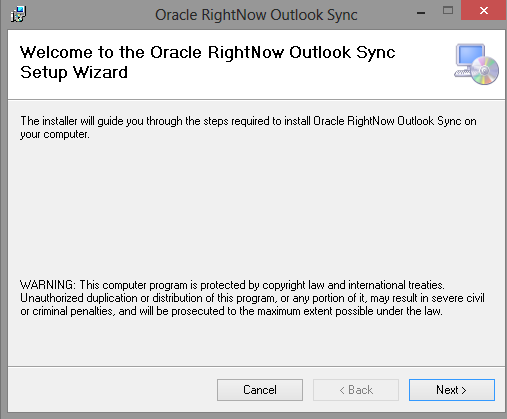
2. From RightNow CX, click the CX button and select Links > Install Outlook Integration. The RightNow Outlook Sync Setup wizard opens.

oi1a

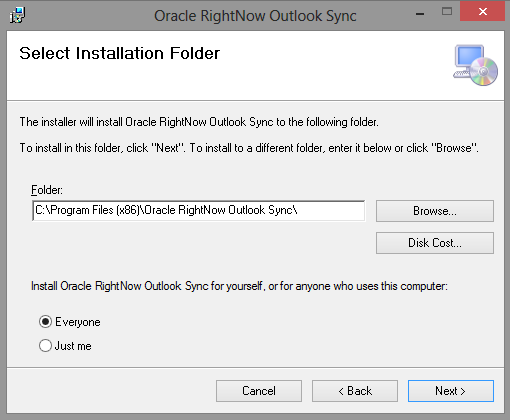
3. Click the Next button to open the Select Installation Folder window. (It is recommended that you install Outlook integration at the default location of C:\Program Files\Oracle RightNow Outlook Sync).

oi3

4. To install Outlook integration in a different location, click the Browse button, select the folder where you want to install Outlook integration, and click the OK button.

5. To see a list of the drives where Outlook integration can be installed, click the Disk Cost button. Click the OK button when you are finished.

6. If you are the only staff member who uses your workstation, select the Just Me radio button.

Or

7. If other staff members have accounts on your workstation and must also use Outlook integration, select the Everyone radio button.

oi4

8. Click the Next button to open the Confirm Installation window.

oi4a

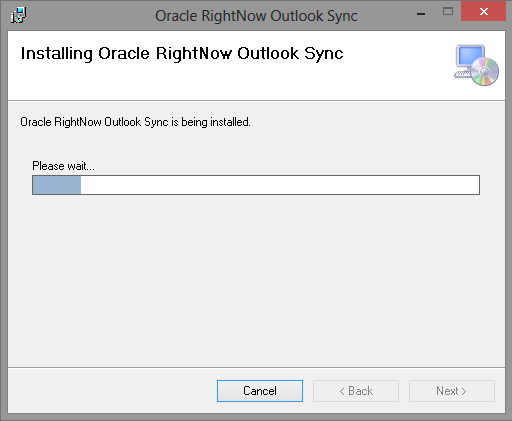
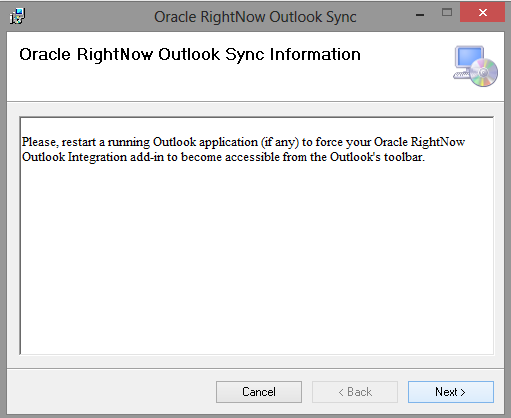
9. Click the Next button to begin the installation. After the installation is complete, the Installation Complete window opens.

oi4b

oi5

oi6

10. Click the Close button to complete the installation.

With the proper components installed, you’ll want to review and possibly customize your sync options before using Outlook integration.

Important Note: RightNow currently does not support integration with Microsoft Outlook 2010 64-bit. You can use Outlook 2003, 2007 and 2010 32 bit. 64-bit is NOT supported.

Outreach and Marketing: Creating Audiences

RightNow provides two methods for grouping contacts to create audiences to use on broadcast mailings or surveys:

  • Contact lists: Static lists comprised only of contacts that have been explicitly selected, changing only when you manually add or remove contacts.
  • Segments: Dynamic lists comprised of contacts that match one or more fixed filters that you specify. Because segments are dynamic, their contents change over time as updated contacts fall in and out of alignment with the filters.

When you create a mailing or survey, contact lists and segments can be used alone or included with (or excluded from) other lists and segments to form your audience. This gives all the flexibility needed to assemble audiences that are specific, optimized, and efficiently maintained.

Creating a Contact List:

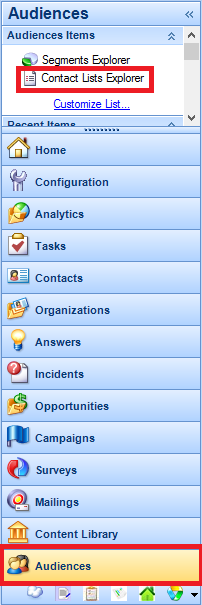
1. Click the Audiences button on the navigation pane
2. Double-click Contact Lists Explorer

audiences1

3. Click the New button
4. Enter information in “Notes” field
5. Tick/un-tick “Available for Proof” field (let contacts in the list receive proof requests)
6. Tick/un-tick “Remove Contacts from Old List” field (let contacts stay in contact lists for longer than the time frame set in the database)

audiences2

7. Add contacts to the list on the Contacts tab

audiences3

Note: You can select multiple contacts by pressing Ctrl while clicking additional contacts. Selected contacts that are already in the list are not added again.

audiences4

8. Click the Save and Close button to save the contact list
9. Select the folder you want to save the contact list in and type the name of the contact list.

From the Contacts tab of the contact list editor, it is possible to add existing contacts to the list or create new contacts and add them to the list. It is also possible to search the list of contacts, remove contacts from the list, or edit contact records.

While contact lists are created by manually adding contacts to a static list, segments are dynamic lists of contacts created by defining contact criteria and selecting filters. When you create a segment, you can filter using any field in the contacts table, including custom fields, and by joining the contacts table to other tables.

Once you create a segment, it can be used in mailings and surveys and the group of contacts is constantly adjusted and updated as contact data meets or falls outside of the segment’s requirements.

Creating a Segment:

1. Click the Audiences button on the navigation pane
2. Double-click Segments Explorer

audiences5

3. Click the New button on the ribbon
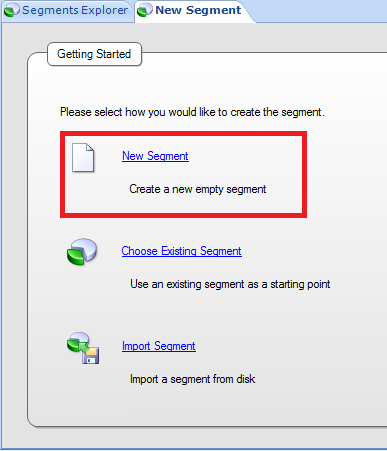
4. To create a segment from scratch, click New Segment

audiences6

5. Enter field information to define the segment’s filters on the Criteria tab. Use the Data Dictionary on the left-hand side or Add Filter in the options on the sections on the right-hand side.

audiences7

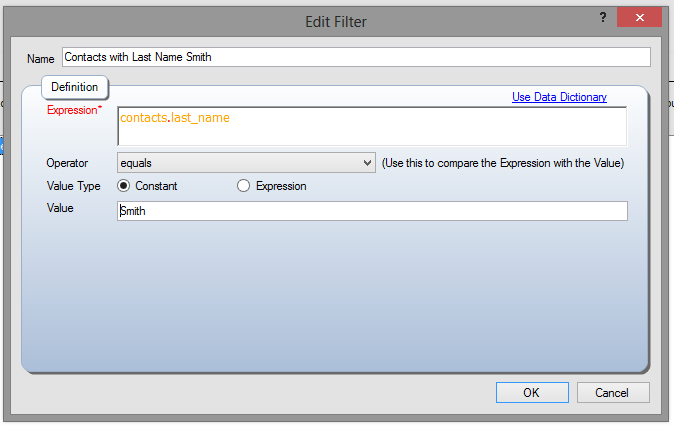
Whenever a field is dragged/dropped from the Data Dictionary or a filter is added/edited an Edit Filter window opens for you to define the criteria.

audiences8

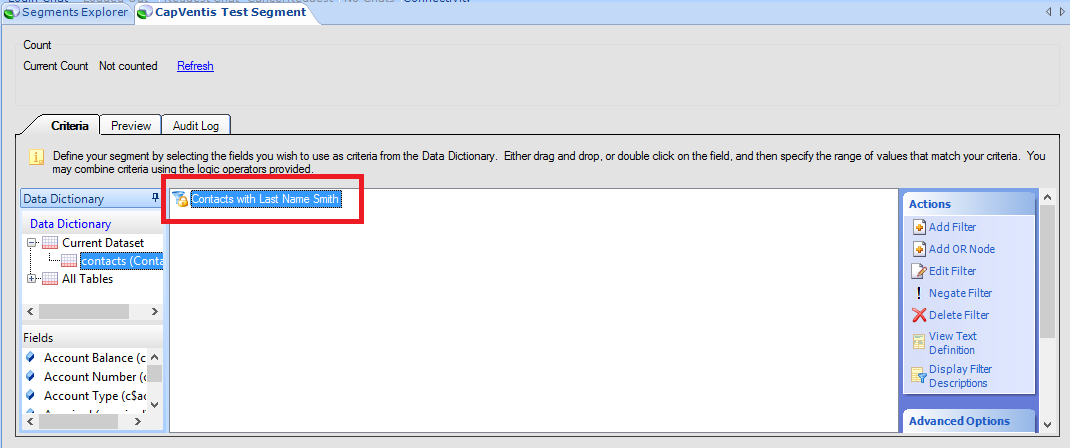
Filters are shown on the Criteria tab window and can be grouped.

audiences9

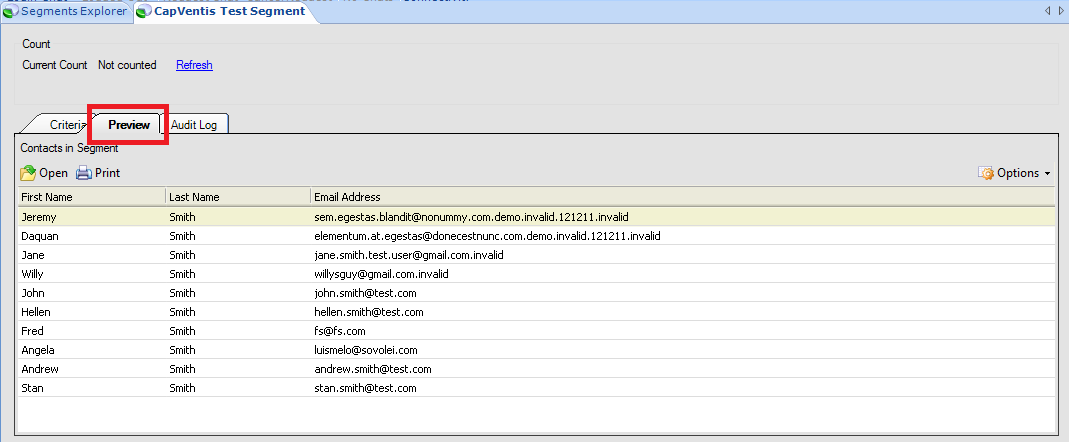
6. To preview the contacts belonging to the segment, click the Preview tab.

audiences10

7. Click the Save and Close button to save the segment has been performed.
8. Select the folder you want to save the segment in and type the name of the segment
9. Click the Save button to save the segment.

Social Channels on Message Thread

Recently, when setting up the Social Channels in a new environment, I came across a distress: I was not able to respond through the same Social channel.

I reviewed my steps:

  1. I had configured the Cloud Monitor correctly;
  2. I had created and set up Facebook Channel correctly;
  3. I had created and set up Twitter Channel correctly;
  4. I was able to monitor both Social channels;
  5. I was able to create an incident in order to respond to a tweet/post.

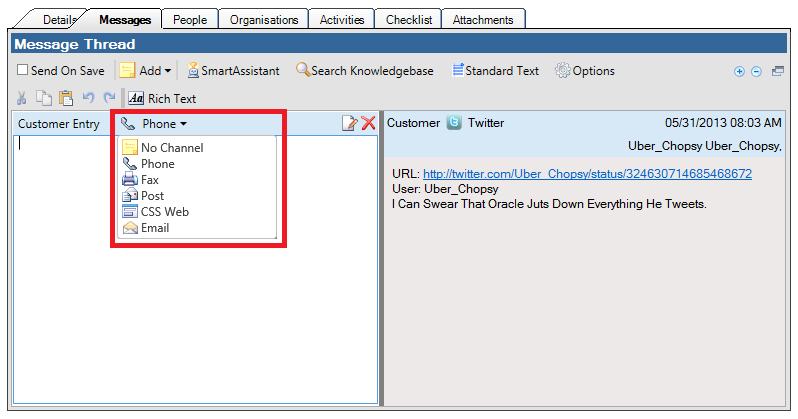
But on the message thread of the incident created from the post/tweet, I was not able to see the social channel option when I clicked the channel drop down list. I could only see the standard options: Phone, Fax, Post, Email, CSS Web or No Channel.

cm0

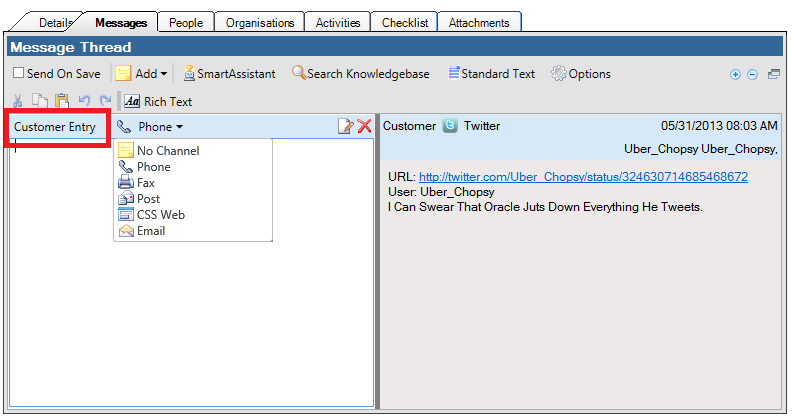
The problem was that when I clicked “Respond” or “Create Incident” on the Cloud Monitor, an Incident was being created and the default message type in the message thread was “Customer Entry” (where I could only see the channels: Phone, Fax, Post, Email, CSS Web or No Channel).

cm1

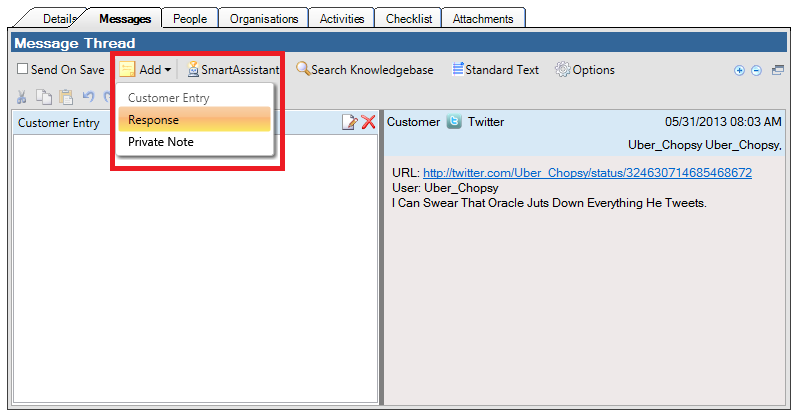
But if I changed the message type to “Response” – by clicking “Add” > “Reponse”…

cm2

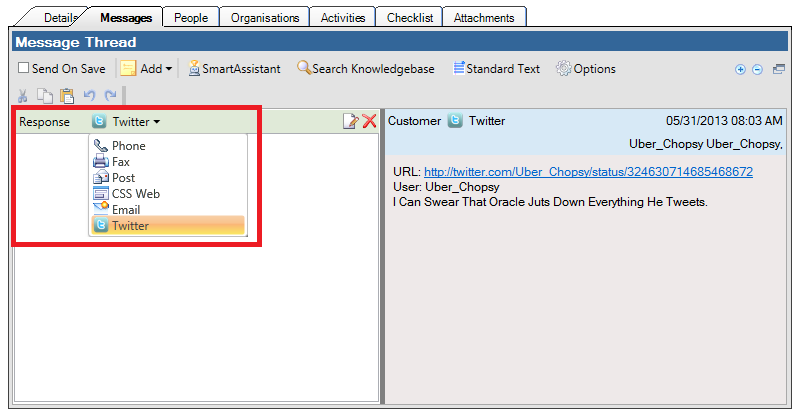
… I was now able to see the Twitter (or Facebook) channel (if the Contact associated with the Incident had a Twitter or Facebook channel username).

cm3

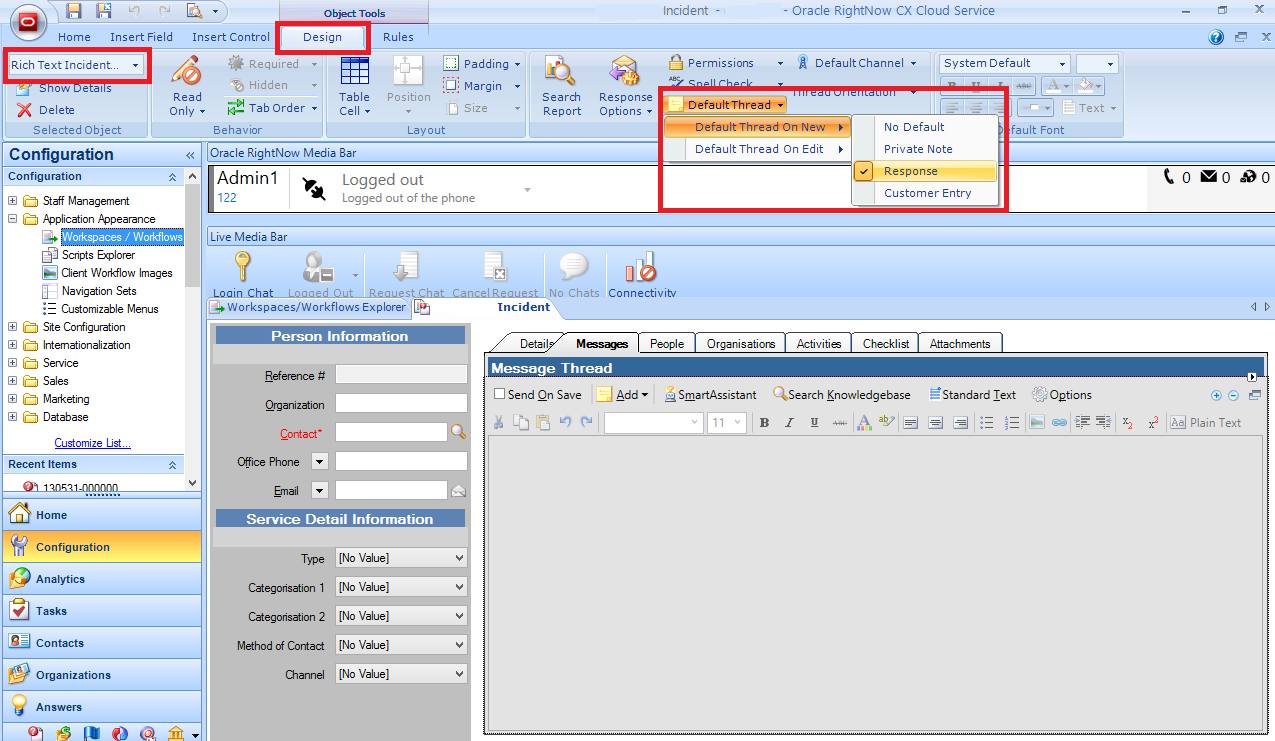
It seemed to me that, whenever I created an incident, it was logical to be able to have the message type default to “Response” instead of “Customer Entry”. And this can be done by editing the Incident workspace:

  • Open the Incident workspace
  • Go to the “Messages” tab
  • Select the messages control (aka “Rich Text Incident Thread”)
  • Go to the “Design” tab > “Options” section
  • Click “Default Thread” > “Default Thread on New/Edit” and select “Response”

cm4

Now, whenever I create an incident, the default message type is “Response” and I can straightaway see the available channels through which I can respond.

Thank you to Hari Menon (Oracle Product Manager) and Luke Brennan (Oracle Pre-Sales Consultant) for the support.

Follow “Doctor CX” on Facebook

Whenever a new post is written I normally go through the Social Networks to let you know that something new is published.

I know some of you – the ones that are registered on WordPress – follow the blog in order to be notified on any new post.

But those with WordPress accounts are just a minority amongst the thousands that fortunately come to try to find help.

So I thought it was time to find an easier way for you to follow and be aware of what is going on and being published.

Therefore I created a Facebook page where a simple “Like” will enable you to always be up to date.

Visit and Like us here or there