Seasoned Consultant, Team Leader and Senior Manager. Specialised in Design, Alignment, Enablement, Implementation, Integration and deployment of technology for Customer Service / Experience and Employee Support. Portuguese | Electrical Engineer | CXPA member | CCXP, ACXS, AgilePM Certified
Using incident rules, you can route unresolved incidents into different queues based on the criteria you define. For example, you might add queues for different product lines or service areas. Or you might have a first tier for basic customer service and additional tiers for problems of increasing complexity.
(Click to enlarge)
When you create profiles for staff accounts, you can assign one or more queues to each profile and specify how incidents are pulled from that queue. Based on their profile, agents can retrieve a specified number of incidents from the queues to which they have access.
(Click to enlarge)
Queues also help you manage incident escalation to meet your organization’s SLAs, balance agent workload, and track agent productivity and efficiency.
The following steps provide an overview for managing queues:
Add queues
Assign queues to profiles
Create business rules to populate queues
Instruct agents about queues
Monitor queues
When you add an incident queue, you can define whether the queue uses a round-robin incident assignment and specify the queue as the default queue where unassigned incidents are routed. You can also delete queues from the Incident Queues editor. Before you can delete the incident queue, you must first edit the rules so they no longer use the queue.
Queue Type has the following options: Standard, Round Robin (All), or Round Robin (Logged In). A round-robin queue automatically assigns incidents in this queue to agents in a rotating fashion. If you select Round Robin (All), incidents are assigned to all staff members whose profile includes the queue, even if they are not logged in.
An incident’s status is its state in the knowledge base. RightNow Service has 4 default incident statuses: Solved, Unresolved, Updated, and Waiting. Additionally, there are 3 default status types: Solved, Unresolved, and Waiting. You can rename the default statuses, but you cannot change their types.
Waiting status means that an agent has responded to the incident and is waiting for a response from the customer. If the customer does not respond within the time specified in CI_HOURS (Agedatabase Utility > Batch Processing > Close Incidents), Agedatabase sets the incident status to Solved.
(Click to enlarge)
RightNow Service can automatically set an incident’s status when agents send a response. This is a property of the Incident Thread relationship item that can be set when you create an incident workspace. The property is called Status Change on Response, and you can set it for one of the following options:
The status does not change when an agent sends a response.
The status changes to Waiting.
The status changes to Solved.
When you add an incident status, you must assign it to one of the three default status types.
If you delete a custom incident status, all incidents set to that status are changed to the default status with the same status type. For example, if you delete a custom incident status with the status type Solved, all incidents that were associated with that status are changed to the Solved incident status with the Solved status type.
If your organization has large numbers of categories or dispositions, staff members and customers must review long lists of menu items to find appropriate options. You can simplify their choices with product linking.
When products are linked to categories, only the linked categories are displayed when customers select products on the customer portal or when staff members select products while working on incidents. When products are linked to dispositions, only the linked dispositions are displayed when agents select products for incidents. Product linking is a powerful tool for enhancing efficiency for both staff members and customers.
Product-category linking is independent of product-disposition linking, so you can enable one or the other or both.
However, implicit linking occurs between the parent levels of products, categories, and dispositions that are linked. Parent products implicitly contain the same links that the leaf products below them contain. In other words, a parent product’s links are “inherited” from their leaf products.
(Click to enlarge)
RightNow Service can automatically create links to categories and dispositions based on answers and incidents in the knowledge base, or you can manually define the links for each product. This action replaces all product-category and product-disposition links (including any you have created manually) with the automatically created links.
A link is created for every product-category combination of leaf products and leaf categories associated to answers in the knowledge base. In other words, in any given answer, every leaf product associated with the answer is linked to every leaf category associated with the answer.
A link is created for every product-disposition combination of leaf products and leaf dispositions associated to incidents in the knowledge base that were created within the last 30 days.
Manual links are created by choosing the product, right-click and select Edit.
(Click to enlarge)
Now that you have created links, you must enable product linking for them to take effect.
(Click to enlarge)
Product-category linking and product-disposition linking are independent, so they are enabled separately. You can enable either or both types of linking.
Product linking in RightNow Service is bidirectional. Besides linking products to categories and dispositions, you can also link categories and dispositions to products.
You might want a product to have the same category or disposition links as another product. In that case you can simply copy the category links or disposition links from the original product, and those links are applied to the product you are editing.
Product linking when working with answers: Regardless of whether “product linking” is enabled and regardless of what categories are linked to products, all products and all categories are available on the Products/Categories tab when you add or edit an answer.
When you select a product that has sub-products (including one or more levels of sub-products), all sub-products below the product you selected are also selected, all the way down to the leaf level. Any parent product levels are also selected implicitly.
When you create custom drop-down menus with the exact options you need, staff members can classify incidents and answers using those options, and customers can select specific products and categories to refine their searches for answers.
Products and categories organize data in the same ways, and you can choose to use either or both when you configure RightNow Service. If you use both, incidents and answers can be organized into specific classifications, and customers can search for answers using product and category filters. You can create up to 6 levels each of products and categories and specify the number of levels agents must enter when working with incidents. It is not required to use products and categories.
An incident’s disposition refers to the way the incident is ultimately solved. You may want to require that agents select a disposition before they save an incident when they change the status to Solved. Dispositions do not appear on the customer portal. You can add as many dispositions as you need, and you can also add sub-levels of dispositions to a total of 6 levels.
(Click to enlarge)
Selecting the visibility settings for a parent level does not automatically set the same settings for the parent’s sub-levels. Visibility must be set individually for each. You can also make sub-products visible even if the parent product is not visible.
You can delete products, categories, and dispositions that do not have sub-levels. When deleting a product or other item that has sub-levels, you must delete all of the sub-levels first. You also cannot delete multiple products, categories, or dispositions simultaneously.
You do not receive a dependency conflict warning when you delete products, categories, or dispositions used in rules. Rules that use the deleted item may no longer function as expected, requiring you to edit the rules and reactivate the rule base.
In addition, you do not receive a dependency conflict warning when deleting products or categories that are used in answers. Answers that are associated with deleted products or categories may not display as expected.
The configuration tasks required when starting to use RightNow CX are:
Create Navigation Set
Create Workspace (optional)
Create Profile (associate Navigation Set and Workspace with the Profile)
Create Staff Account (associate Profile with the Staff Account)
Defines the way fields, tabs, buttons and reports are displayed on the content pane when working with records and when working with Chat.
The workspace determines the layout of fields, controls, and tabs on the content pane as well as the arrangement of buttons on the ribbon and the Quick Access toolbar.
Workspaces define the appearance of the agent desktop when staff members add, view, and edit records in RightNow CX.
(Click to enlarge)
RightNow CX provides a set of standard workspaces suitable for most common record maintenance, but also gives you complete flexibility to create custom workspaces to help your staff work more efficiently.
Custom workspaces are also used to provide your team with access to records stored in custom objects, which by definition have no standard workspaces of their own.
Custom workspaces are created on a workspace designer consisting of a ribbon and a design space.
The designer ribbon provides access only to fields, controls, and properties that apply to the workspace type. Controls specific to answers, for example, cannot be added to opportunity workspaces.
In addition, you can create workspace rules to dynamically change the behaviour of fields and controls based on certain triggering events.
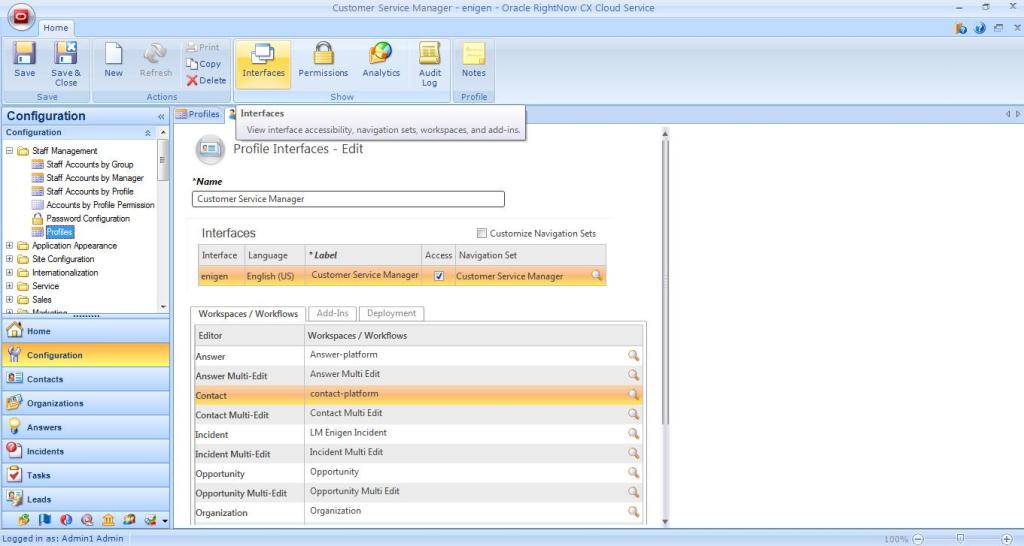
The workspaces used by staff members are defined in their staff profile, with one workspace associated for each type of record the profile can access.
(Click to enlarge)
Listed next to each workspace’s name is its workspace type, based on the type of record it opens. The workspace type determines which fields and controls can be added to the workspace.
The configuration tasks required when starting to use RightNow CX are:
Create Navigation Set
Create Workspace (optional)
Create Profile (associate Navigation Set and Workspace with the Profile)
Create Staff Account (associate Profile with the Staff Account)
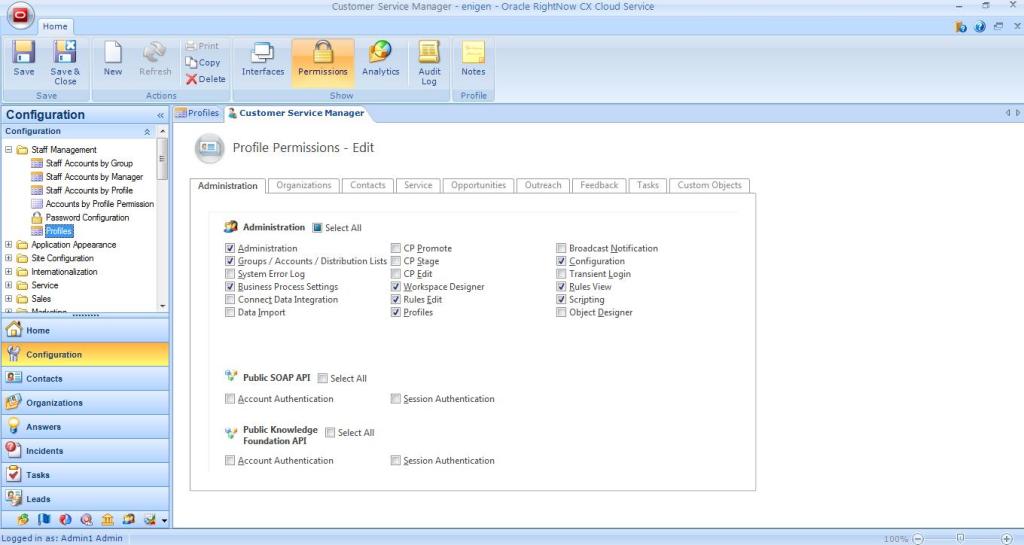
Profiles let you control what areas of RightNow CX your staff members can access and what specific actions they can perform in those areas.
Profiles contain general options for RightNow CX administration functions and more specific options for each of the products within RightNow CX.
For example, profiles define whether your staff members can view and edit business rules. They also define whether your agents can respond to customers, assign incidents, conduct chat sessions in RightNow Chat, and perform other RightNow Service activities.
(Click to enlarge)
Navigation sets and custom workspaces are associated with profiles. A Profile has to have a Default Navigation Set.
While creating and using custom workspaces is optional, navigation sets must be created and associated with profiles before you add staff accounts. Otherwise, staff members will not have access to any records, reports, or components.
You may decide to define your profiles based on the structure of your organization. For example, you may want separate profiles for administrators, managers, agents, sales representatives, marketing personnel, and knowledge engineers.
Once you create profiles, you can add staff accounts and assign a profile to each account.
The following items must be created before adding profiles.
Navigation sets. Profiles without navigation sets do not allow access to reports and other components
Custom workspaces (optional). If you use custom workspaces, we recommend creating them before creating profiles so you can assign workspaces to specific profiles.
The configuration tasks required when starting to use RightNow CX are:
Create Navigation Set
Create Workspace (optional)
Create Profile (associate Navigation Set and Workspace with the Profile)
Create Staff Account (associate Profile with the Staff Account)
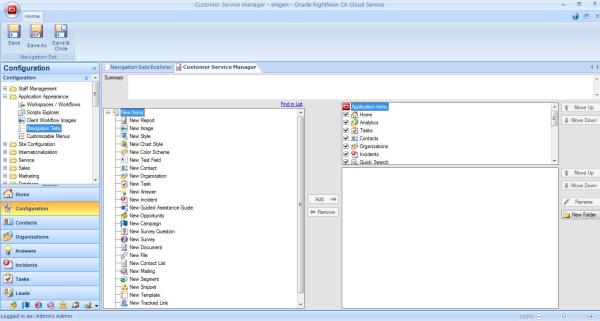
Navigation sets control the navigation lists and buttons that staff members see on the navigation pane of the RightNow CX Console.
Navigation sets can be created for staff members who have any combination of responsibilities, and can be assigned to staff members in their profiles.
Every staff member has a profile, and every profile must include a navigation set that all staff members with that profile use when they work in RightNow CX.
A navigation set is a combination of navigation buttons and their associated navigation lists.
If you do not create navigation sets and assign them to profiles, staff members will not have access to navigation buttons and lists.
You can configure navigation sets to provide access to only areas of RightNow CX that staff members need to perform their job.
You can create as many navigation sets as your organization needs.
When you add a profile, you select the navigation set that staff members with the profile will use.
The staff members assigned to the profile have access to only those reports and items defined in their profile’s navigation set unless you allow staff members with that profile to customize their navigation set.
RightNow Engage is through closed-loop marketing and integrated analytics.
Enhances the customer experience by delivering proactive, highly personalized communications while providing brands with real-time actionable insights to build loyalty and drive revenue


 Doctor CX